
Schedule Appointment Near Family
The Smart Scheduler can locate available appointment time slots that are near other family member appointments. This feature is useful for parents that want to schedule appointments for multiple family members on the same day.
Watch the movie. (A valid Ortho2 customer login is required to run video tutorials, webinars, and training programs.)
-
Open Your Scheduler
- You can open this feature in multiple ways: Use the method that's most convenient for you.
You can open this feature in multiple ways: Use the method that's most convenient for you.
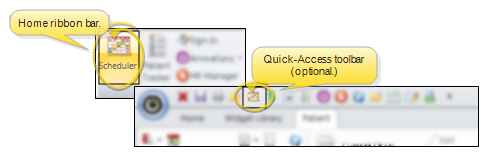
Home ribbon bar or Quick Access toolbar
Clicking the Scheduler icon from either the Home ribbon bar or your Quick Access toolbar while a Scheduler session is already active can either bring the open Scheduler tab to the front of your Edge Cloud window, or open another Scheduler tab. See "Scheduler User Options" for details about setting up this option.
Patient Folder
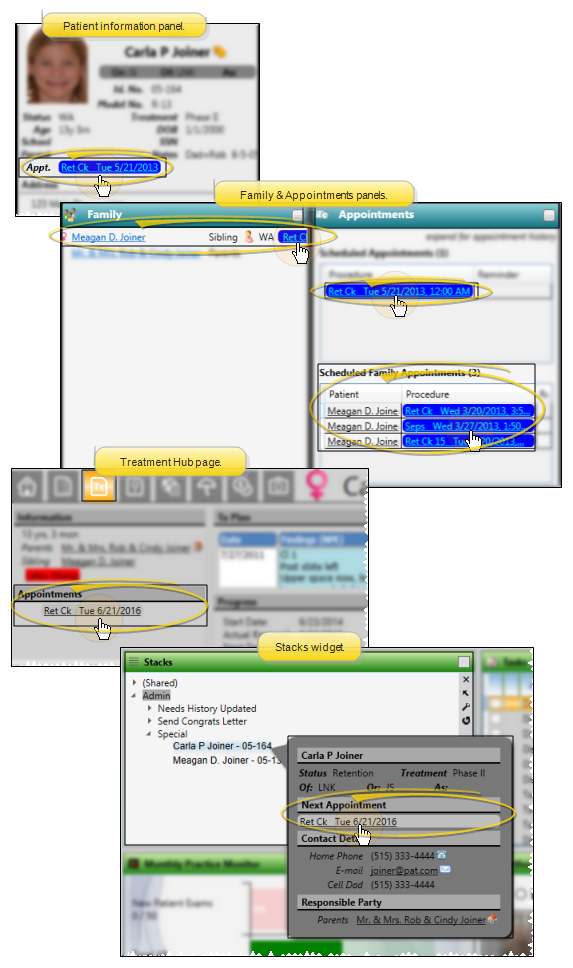
You can open your Scheduler to a specific appointment by clicking the appointment link wherever it appears in the patient folder, such as on the Patient Information Panel, the Family panel, or the Appointments panel of the patient folder Home page, on the Treatment Hub page, or by hovering over the patient name in your Stacks widget.
tipIf you have multiple Scheduler tabs open, clicking a patient appointment link will bring the left-most tab to the front of your Edge Cloud window. Note that before you click the link, you can reorder your tabs by simply dragging them into place, thus selecting which Scheduler tab you want to work with. See "Scheduler User Options" for details about enabling/disabling the multiple Scheduler option.
-
Open the Smart Scheduler
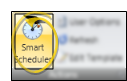
- Click Smart Scheduler from the Scheduler ribbon bar. (You can open the Smart Scheduler in several ways: See "Smart Scheduler" for details.)
-
Select Appointment to Schedule Near
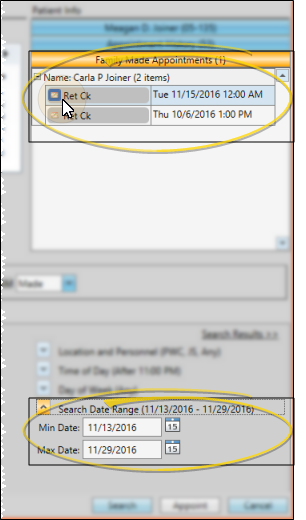
- Open the Family Made Appointments list from the Patient Info section of yourSmart Scheduler window, then click the icon beside the appointment you want to schedule near. The Search Date Range at the bottom of the window is updated to be near the selected appointment.
-
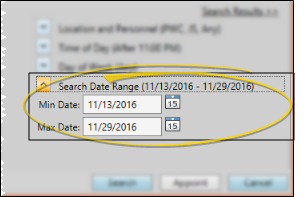
Adjust Search Dates
- If needed, you can manually adjust the Search Date Range.
-
Appoint the Patient - Continue to select parameters, and appoint the patient with the Smart Scheduler. See "Smart Scheduler" for details.
More Information
Family Appointments Report - Run a Family Appointments report to obtain a list of appointments for any range of dates, grouped by family name. You can narrow the list to include only appointments for a specific orthodontist or office, or include all appointments. You may choose to run the report for an individual doctor and/or office, or include all orthodontists and offices on the report. See "Family Appointments Report" for details.