Search Your Schedule
Use the search box in the upper right corner of your scheduling window to locate a scheduled appointment or a Scheduler note. You can type any information you have, including all or part of the patient name, id number, procedure, appointment time, chair, or note text. The search tool will only look for scheduled appointments that appear on the currently displayed date or dates, but will search Scheduler note text for all dates.
-
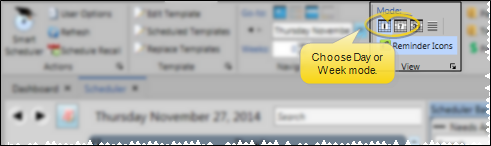
View the Date / Week to Search
- The search tool only works when you are viewing the Scheduler in day mode or week mode. In addition, if you are trying to locate a scheduled appointment, the search only looks for appointments that appear on the date or dates you are viewing. (The text of all Scheduler notes is always searched, regardless of the date the note appears on.)
-
Enter Text to Search
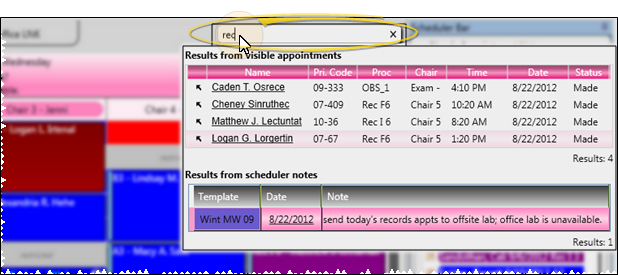
- Type the text you want to search in the box at the upper right of your Scheduler window. You can type nearly anything you know about the appointment or note, including the patient name, id number, appointment time, procedure, chair, or note text. You can refine the search by separating text by semi-colons. For example, if you are looking for a patient with a retainer check whose name includes "Jon", you might type RET;Jon in the search box.
-
Use Search Results
- When the search results appear, you can choose to go to that Scheduler appointment, go to the Note date, or open the patient folder.
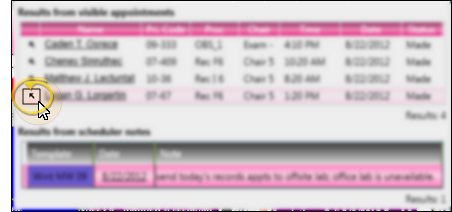
Go To Appointment - Click the arrow at the left of the search results to go to that appointment.
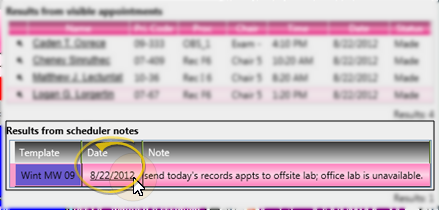
Go to Note Date - Click a date in the Notes section of the search results to open your Scheduler to that date.
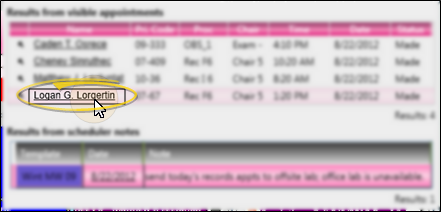
Open Patient Folder - Click a patient name in the search results to open that patient folder.
More Information
Adjust Column Width
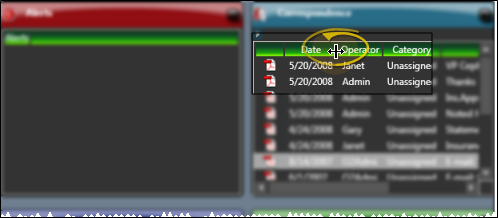
Click the bar between two columns to reallocate the column space. Be aware that it is possible to adjust a column to be so narrow that you no longer see it.
Change Column Order
Click a column heading and drag it to a new location within the window. Other columns adjust accordingly.