Appointment Reminders Editor
Use the Appointment Reminders editor to create and maintain the list of standard appointment and recall reminders that you can assign to patient appointments, and print on most appointment card formats.
Add and Edit Appointment Reminders
-
Open Appointment Reminders Editor
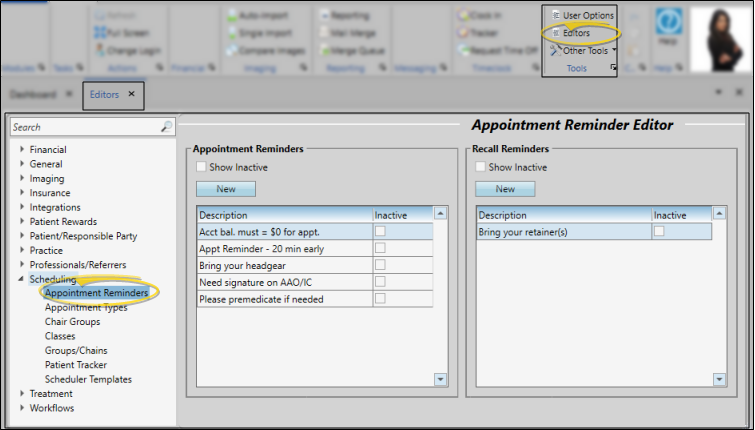
- Select Editors from the Tools section of the Home ribbon bar. Then, from the Scheduling section, open the Appointment Reminders editor. (You can also use the Search field to look for the editor you want to work with.)
-
Create or Edit a Reminder Record
- Choose an existing record to work with, or create a new one. appropriate section of the window.
Select Existing Record
- Your list of existing records appears at the left. Scroll through the list, and click the record to work with. Then review and edit the details. If not all your records appear in the list, you can enable the Show Inactive option to see them.
Create a New Record
- Click New, then enter the details for your new record.
 note
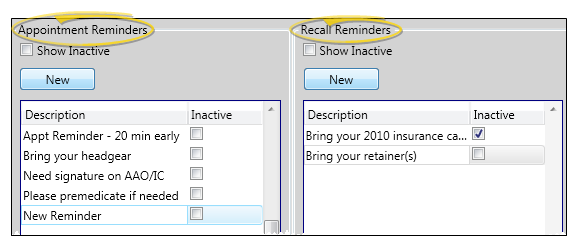
noteBe sure you click New in the appropriate section of the window: Appointment reminders are on the left; Recall reminders are on the right.
-
Reminder Details
- Choose a reminder from either the Appointment Reminders or Recall Reminders section of the window. Enter the reminder text, and toggle the inactive flag as needed.
Edit Descriptions - Click in the field you want to modify and type your changes, or cut, copy, and paste You can cut, copy and paste to add and edit text and/or images to many areas of your system using standard keyboard shortcuts ( Ctrl+X , Ctrl+C , Ctrl+V , respectively). Or, you can often right-click the field or image you are working with and select the action from a menu. In many cases, Ctrl+A selects all available text or images, ready for you to cut or copy, Ctrl+Z performs an Undo of the last action, and Ctrl+Y performs a redo of the last action. as needed.
Inactive / Active Toggle - Once you create a record, you cannot delete it. You can, however, flag it Inactive. Records you flag as Inactive are not available for general use, but they remain in your system for reporting and other data collection needs. In addition, you can toggle records back to Active whenever needed.
-
Save Changes
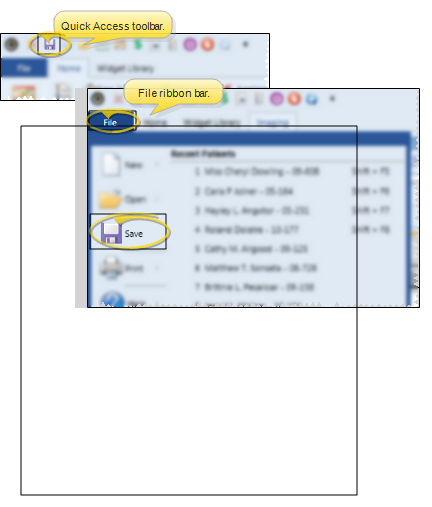
Click Save in your Quick Access toolbar or File ribbon bar (or press Ctrl+S on your keyboard) to save any changes you have made.
Print an Appointment Reminder List
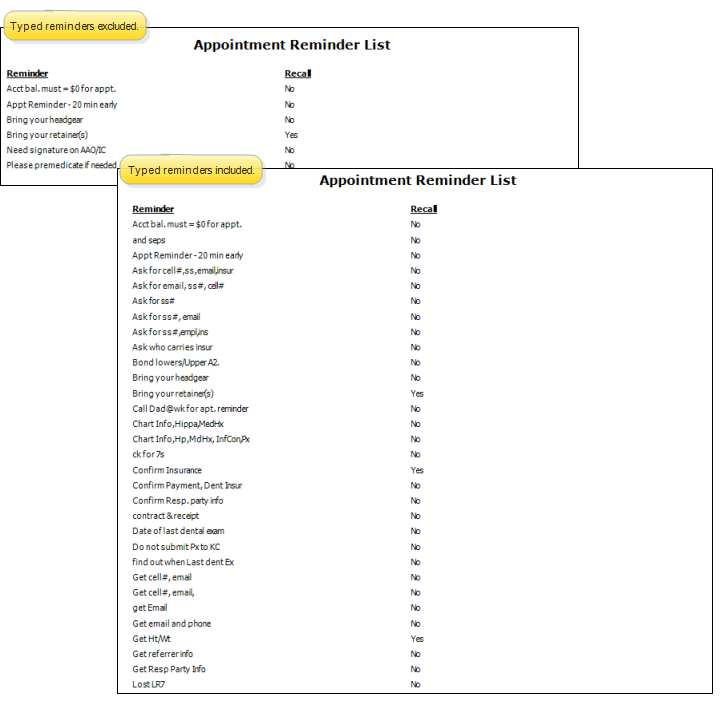
Run an Appointment Reminder List to obtain the list of active reminders you have created to assign to patient appointments. Both regular and recall appointment reminders are included. You can choose to include reminders you have typed into a patient's appointment, rather than choosing from the list. If you include typed reminders, all reminders that have ever been typed into an appointment will be on the report, even if the appointment has been kept, changed, or deleted, or if that reminder has been removed from the appointment. See "Appointment Reminder List" for details.