Smart Scheduler
Use the Smart Scheduler to search for, identify, and schedule patient appointments. Just select your appointment type, the desired date or number of weeks out, and other details to narrow or widen the search for available appointment time slots. You can even use the Smart Scheduler to schedule near other family member appointments. Then let the Smart Scheduler search for the available times that fit those parameters.
Set Up Your Smart Scheduler
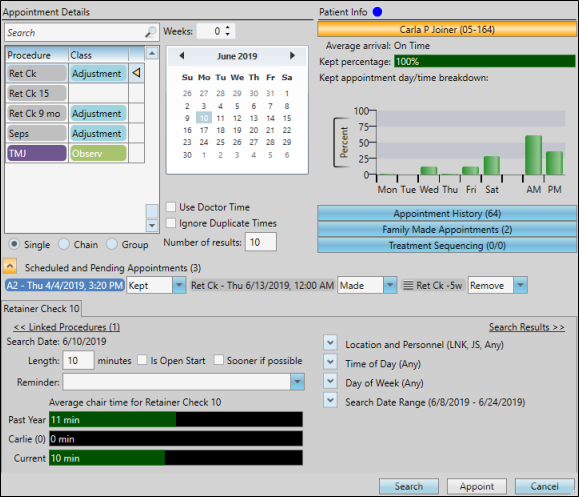
Use the Smart Scheduler user options to set up many choices that define how your Smart Scheduler works for you, including how many available appointments to list in your search window, using Doctor Time scheduling, and applying default doctor, office, and assistant filters. See "Smart Scheduler Options" for details.
Use the Smart Scheduler
-
Open the Smart Scheduler
- You can open this feature in multiple ways: Use the method that's most convenient for you.
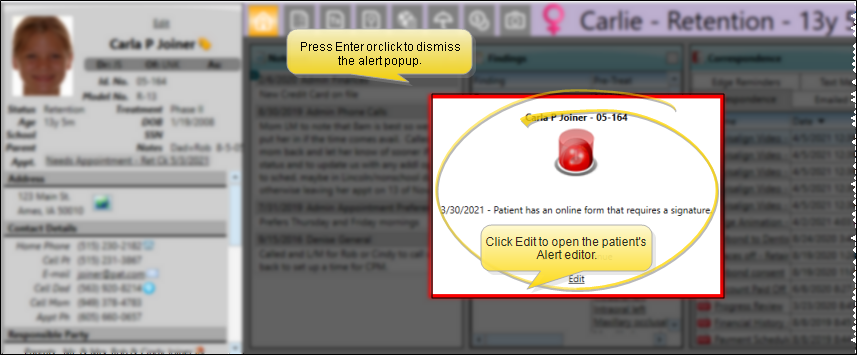
noteIf the patient has an alert trigger enabled for this feature, the Alert Stop pop-up window will appear when you initiate this feature for the patient. Review the alert information, then either press Enter on your keyboard, or click the box to continue. You can also click the Edit link to open the Alert editor for that patient. (If you have a patient folder page in a floating window, under certain circumstances the Enter key will not dismiss the alert popup window. In that case, you must click the popup window to dismiss it.)
Patient Folder - Patient ribbon bar > Patient section > Smart Scheduler.
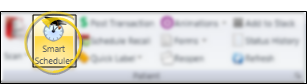
Scheduler - (Option 1.) - Scheduler ribbon bar > Active Patient section > Smart Scheduler (or press Ctrl+E on your keyboard). A patient must be active in your Scheduler for this option to function.
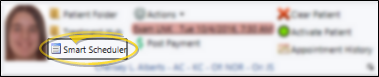
Scheduler - (Option 2.) Scheduler ribbon bar > Actions section > Smart Scheduler. If a patient record is already active, that patient's information will be loaded automatically. Otherwise, you use Fast Find (either typing information or swiping a registered reward card) to search for the patient to work with.
Needs Appointment List - Click the Smart Scheduler button beside the patient name in your Needs Appointment List, or right-click the name and select Search for Appointment to open the Smart Scheduler for that patient. See "Needs Appointment List" for details.
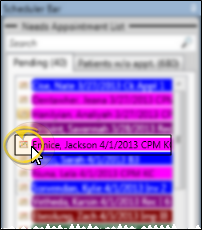
Patient Information Panel - Enable / disable the Launch Smart Scheduler setting in your Scheduler User Options to choose whether to open the Smart Scheduler for a patient when you click on a Needs Appointment link in the Patient Information Panel of a patient folder, or whether clicking the link opens the Scheduler date with the patient activated. This feature works only for patients on the Pending section of the Needs Appointment list. When you click the link for patients on the Patients Without Appointments section, the Scheduler opens, but the Smart Scheduler is not launched. See "Needs Appointment List" for detailsabout each section of the list.
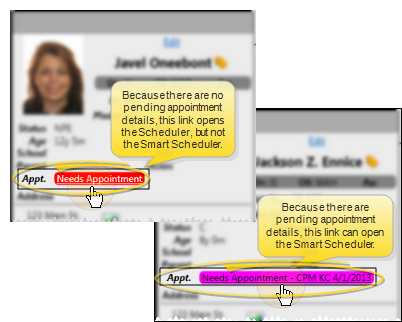
-
Review Patient and Family Information
- Review this patient's appointment compliance and detailed appointment history, as well as any appointments that family members currently have scheduled at your office. In addition, any visual tags applied to the patient folder appear at the top of the window for your reference. Click a header to expand that section.
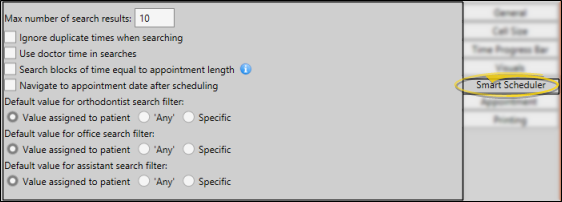
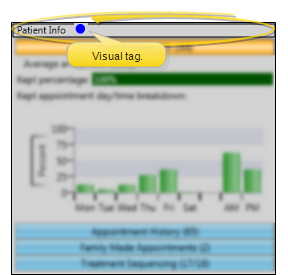
Patient Info - Click a header to expand the information you want to see. Any applied visual tags (a blue circle in our example) always appear beside the "Patient Info" header.
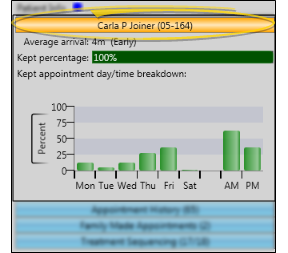
Patient Compliance - Click the patient name header to review how well this patient complies with appointments at your office. (You must use the Patient Tracker and appointment processing for this data to be accurate.)
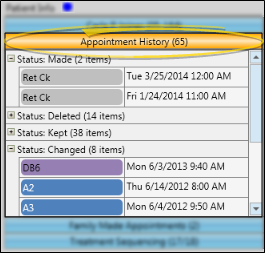
Appointment History - Review currently scheduled appointments, as well as the history of appointments this patient has kept, missed, and changed. You can collapse/expand each section of the history as needed. You must use appointment processing for this data to be accurate.
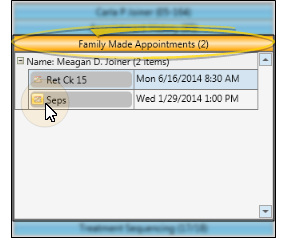
Family Made Appointments - Review any appointments family members currently have scheduled at your office. This feature is useful for parents that want to schedule multiple appointments on the same day. While using the Smart Scheduler, you can click the Scheduler icon beside a family appointment to schedule near it. (See "Schedule Appointment Near Family" for details.)
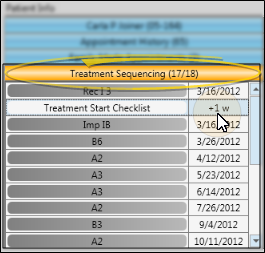
Treatment Sequence Progress - You can review a patient's treatment sequence while scheduling an appointment. This feature helps you stay on the proposed course of treatment with every appointment. See "Treatment Sequence" for details.
-
Select Appointment Details
- Select the appointment procedure, target search date, and other details you want the Smart Scheduler to look for.
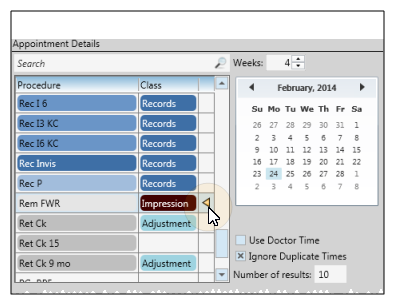
Schedule an Individual Procedure - Select to appoint a Single procedure. To find the appointment type / procedure to work with, you can scroll through the list, or type the beginning of the description in the text box. (Use the Appointment Type / Procedure editor to define your descriptions, classes, and other details.) If the patient has a treatment sequence, the next sequence appointment procedure is the default. (See "Patient Treatment Plan & Sequence Page" for details.)
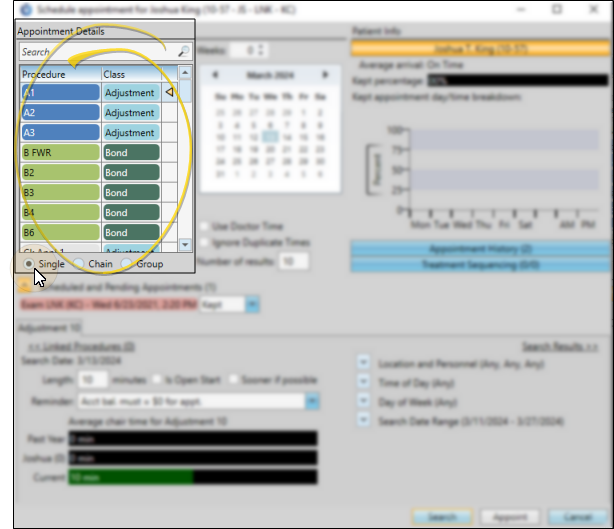
Schedule Group and Chain Appointments - You must use the Smart Scheduler, and select to appointment a Chain or a Group. Each procedure in the chain / group you select will have a tab showing you the available options for that portion of the appointment(s). See "Schedule Procedure Groups and Chains" for details.
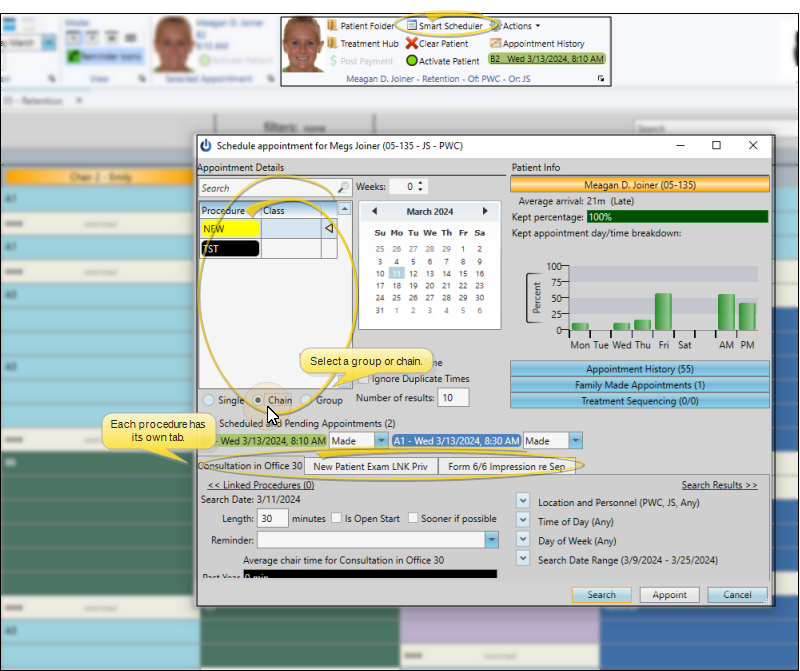
Weeks from Today / Date - (Optional.) You can optionally use the "weeks" field and the calendar to select the target date to start searching for appointments. The default number of weeks from today is set up in your Grid General Options. In addition to using the "weeks" field and the calendar, you can fine-tune the dates to search with the Search Date Range options, described below, or the Schedule Near Family option.
Use Doctor Time - Choose whether you want the Smart Scheduler to calculate doctor time already scheduled for other chairs when selecting available appointment openings. If this feature is enabled, the Smart Scheduler will ignore chairs that look available, but would cause doctor time to be overbooked for that time interval. If this feature is disabled, doctor time is ignored as the Smart Scheduler searches for open appointment times. You set the default for this feature in your Grid > Smart Scheduler User Options.
Ignore Duplicate Times - Enable the Ignore Duplicate Times option to list an available appointment time only once, regardless of the number of chairs you have open at that time. If this feature is disabled, the Smart Scheduler will list each chair that is available as a separate appointment. You set the default for this feature in your Grid > Smart Scheduler User Options.
Number of Results - Select the number of available appointment openings to include in your search list. If you cannot find an appropriate appointment time from that list, you can make this number larger, or change your Search Details to expand your search results. You set the default for this feature in your Grid > Smart Scheduler User Options.
-
Process Other Appointments While Scheduling New Appointment
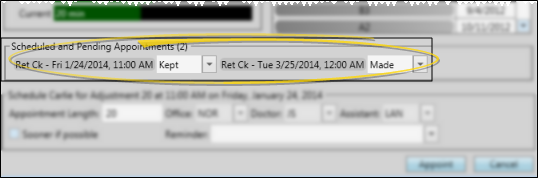
- As you schedule a new appointment for a patient, you can process previously scheduled appointments directly from the appointment confirmation window.
-
Refine Appointment Details
- The bottom portion of the window includes the details about the procedure you are scheduling. You can review the average time this procedure takes, change the length of the procedure, enable / disable certain scheduling options, and assign a reminder before searching for available openings.
noteYou use the
<< Linked Procedures and Search Details >>links that appear at the top of this section of the window to toggle between the appointment details and linked dental procedures windows.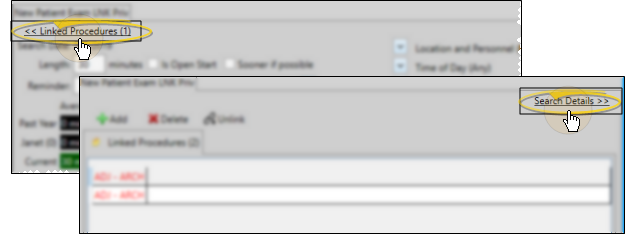
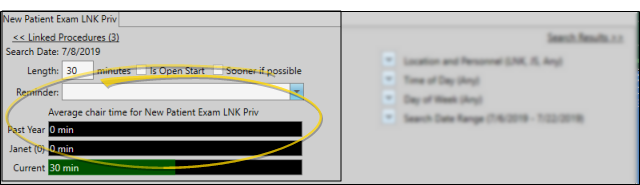
Length - Enter the number of minutes to schedule for this appointment. The default length for the selected procedure is found in your Appointment Type / Procedure editor. The Scheduler compares the length with the actual number of minutes this appointment generally takes at your office, so you can adjust the length as needed for this patient. (You must use the Patient Tracker for this data to be accurate.)
noteYour security settings might prevent you from changing the appointment length as you schedule or edit a patient appointment. This feature has two levels. First, the Scheduling section of your Security editor can prevent operators from changing the length of any appointment. Second, the Appointment Types editor can prevent anyone from changing the length of individual appointment procedure types, regardless of the Security editor settings. If you do not have access to changing the appointment length, that field will be dimmed when you schedule or edit a patient appointment.
Open Start - Enable this option if you want the Smart Scheduler to search only for appointments that begin with a cell classified as an Open Start cell. This feature is useful, for example, if you like to start appointments at the hour, quarter hour, and half hour only. If you disable this option, theSmart Scheduler will look for appointments that begin at any time. The default Open Start setting for each procedure is maintained in your Appointment Procedures / Types editor, but you may enable / disable the field as needed for individual appointments.
Enable / Disable Sooner if Possible - As you schedule a patient appointment, you can enable the Sooner If Possible option to place the patient on your Sooner if Possible list, making it easier for you to fill appointment slots that become open due to cancellations. See "Scheduler Bar" for details.
Reminder - To add a reminder to the appointment you may: 1) Select a standard reminder from your list, 2) Type a unique reminder in the text box, or; 3) Use a combination of both methods by selecting a standard reminder, then editing the text as needed. Reminders appear in the patient folder and the Scheduler, the patient Appointment History, and optionally on appointment cards (See "Appointment Reminders Editor" for details.)
-
Link Dental Procedures
- Use the bottom section of the window to work with this appointment's assigned dental procedures.
noteYou use the
<< Linked Procedures and Search Details >>links that appear at the top of this section of the window to toggle between the appointment details and linked dental procedures windows.Add / Delete / Link Procedures - Use the Add, Delete and Unlink icons to apply or remove dental procedures for this appointment. Procedures added and deleted here are also added / deleted from the patient's treatment chart. Procedures you unlink from this appointment remain in the treatment chart, waiting to be linked to another appointment. In addition, you can use the Unscheduled Procedures tab to link dental procedures that have been applied to the patient's treatment chart, but have not yet been assigned to an appointment.
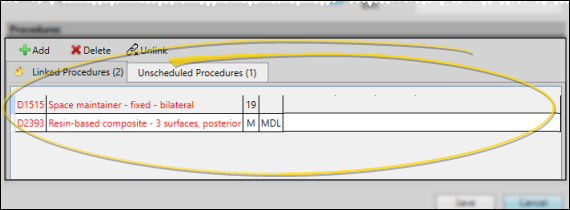 note
noteWhile you can assign any dental procedures as defaults in your Procedure editor, you can only add dental procedures assigned to a general area (i.e. arch, mouth, quadrant, sextant or other area) as you schedule or edit an appointment. Dental procedures assigned to individual areas (i.e. surface, tooth, pulp chamber, and root) cannot be added as you schedule or edit an appointment. They must be applied directly from the patient's tooth chart, then linked to the appointment.
-
Search Details
- Narrow or expand your search for available appointment openings by specifying a location, doctor, or assistant, and limiting the search to specific days, times, and dates. Click the down arrow beside each setting that you want to change to open the details for that parameter.
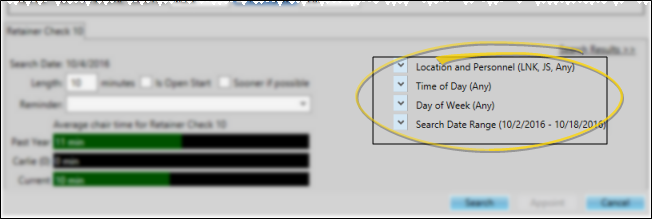
Location and Personnel - Use these settings to limit your search to a specific office, orthodontist and/or assistant, or search for all available openings. Each option defaults to the location or person assigned to the patient folder. If you attempt to schedule to an office, doctor or assistant that is not assigned to the patient, you must confirm your action before the appointment will be scheduled.
Time of day - Use these settings to select a specific time of day to search, or, leave these fields blank to search any available time during your scheduling day. Use the Appointment Procedures / Types editor to set up the default times of day for specific procedures.
Day of week - Use these settings to flag one or more days of the week to search: Or, leave all days of the week unmarked to search any available scheduling days.
Search Date Range - Select the beginning and ending dates to search. This option defaults to searching two days before and two weeks after the target date you selected on the calendar at the top of the Smart Scheduler window. You can also use the Schedule Near Family Appointment feature to automatically select dates near another appointment.
-
Initiate Search
- Click Search to look for appointment openings that match your appointment and search details.
-
Review Results
- Your Smart Scheduler window toggles to show you the search results, including the available dates and times, and associated doctor, office, assistance, number of days from your "target" date, currently scheduled percentage for that day, and any Scheduler notes.
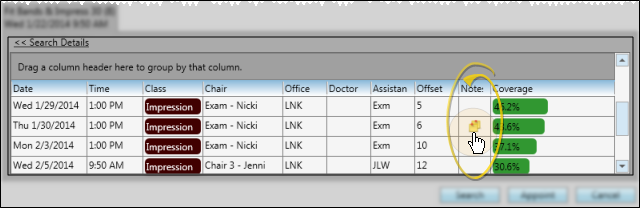
Sort Order - Click a column heading to sort the results by that column: Click the same heading again to reverse the sort order.
Grouping - You can group the search results by any column by dragging that column heading to the space above the results list. For example, you might group by chair, then search the results of a specific chair. You can drag multiple column headings to the grouping area to create a hierarchy of groups as needed. Drag the group heading back to the results list to remove the grouping.
-
Toggle Search Details / Search Results
- You can use the Search Results
>>and<<Search Details links to toggle between viewing the appointment and search details you selected, and the list of available openings. You might do this, for example, if you need to adjust the appointment and search details to expand or narrow your list of openings. If you do change any search details, be sure to click Search at the bottom of the window again to refresh the list of results.
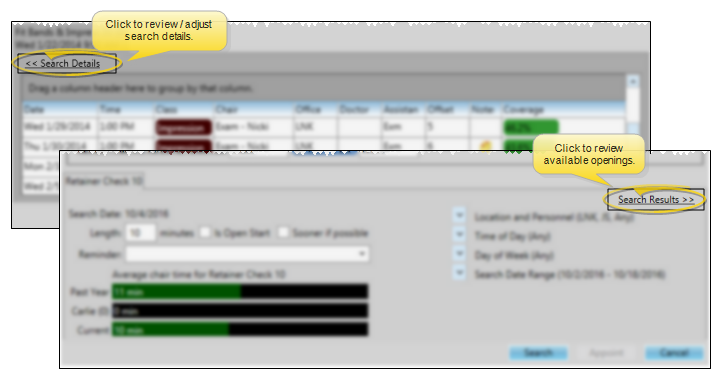
- You can use the Search Results
-
Appoint the Patient
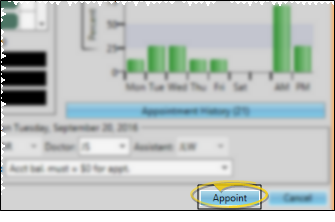
- When you are satisfied with the appointment details, click Appoint. If you are scheduling a procedure group or a procedure chain, all the appointments will be scheduled for the date / time shown on the tabs at the top of the window, representing each procedure.
-
Override Scheduling Conflicts
- If your Scheduler finds additional conflicting data between your selected appointment time, appointment type / procedure, and patient, you must confirm that you want to override the assigned classifications before the appointment can be scheduled.
Procedure Class Conflict - If the appointment is being scheduled to a grid cell with a different class or column assignment than the selected appointment type / procedure, you must override the classifications before the appointment can be scheduled.

-
Respond to Auto-Events and Workflows - Respond to Auto-Events and Workflows triggered by the appointment, such as posting a transaction, printing a letter, or changing the patient's status. See "Appointment Type / Procedure Editor" for details.
Schedule Procedure Groups and Chains
You must use the Smart Scheduler, and select to appointment a Chain or a Group. Each procedure in the chain / group you select will have a tab showing you the available options for that portion of the appointment(s).
Navigate to Appointment Date After Scheduling
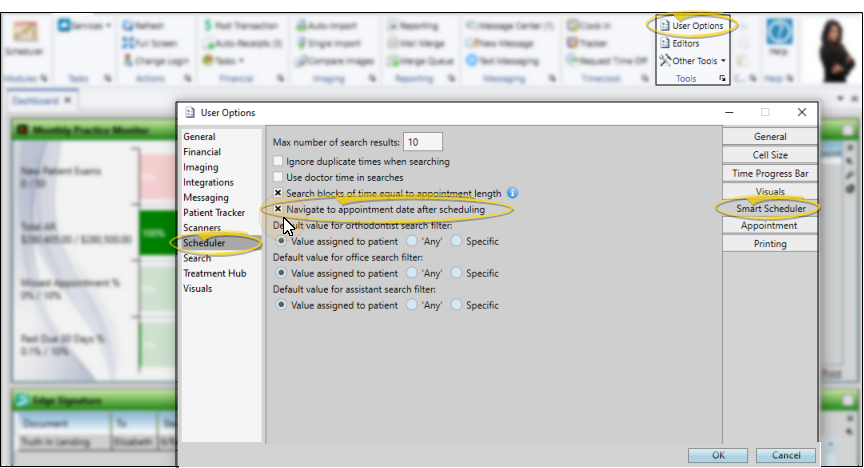
(Optional.) - Use your Smart Scheduler user options to choose whether to open the Scheduler to the appointment date after you appoint a patient with the Smart Scheduler. See "Smart Scheduler Options" for details.
Launch the Smart Scheduler With a Workflow
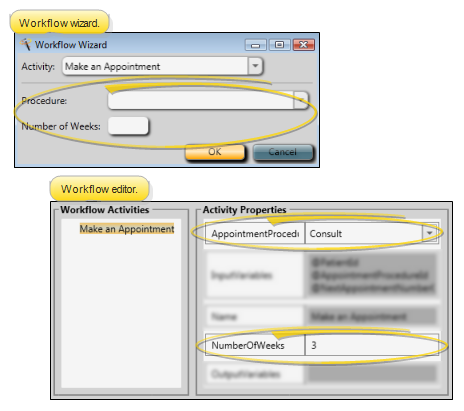
Use the Make an Appointment workflow activity to open the Smart Scheduler or Recall Appointment window for the patient when the workflow is triggered. See "Workflow Activities" for details.