
Set Up Sign-In Screen Background
The background of your Patient Sign-In screen can be a solid color, or any graphic you choose.
-
Open Patient Sign In Editor
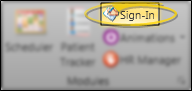
- Home ribbon bar > Modules Section >
 Sign-In > Password > Log In. If you do not have a sign-in prompt, you can press Ctrl+E on your keyboard and enter your sign-in password to enter editing mode.
Open Sign-In from the Modules section of the Home ribbon bar.
Log into the editor with your sign-in password. (If you have not set up a password yet, just press Enter at the login prompt.)
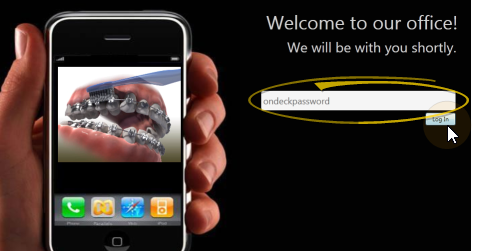
- Home ribbon bar > Modules Section >
-
Open Background Options
- Right-click anywhere on the screen to open a menu of background choices.
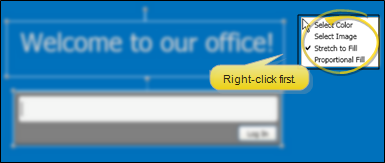
Select Color - Right click, then select this option to open a color selection window. Choose a single color to use for the entire sign-in screen background.
Select Image - Right-click, then navigate to a single image to use as your sign-in screen background.
Stretch to Fill - Right-click, then enable this property to fill the entire area with the image. The content will be stretched, changing the aspect ratio, and possibly distorting the content. Enabling this property disables all other fill properties. If you are using a background color instead of an image, this property is ignored
.Proportional Fill - Right-click and enable this option to maintain the aspect ratio of the image, filling the object as best as possible. Enabling this option disables all other fill properties. If you are using a background color instead of an image, this property is ignored
-
Save Changes
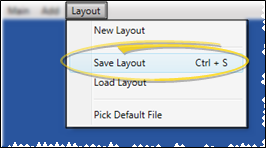
- From the Sign In Editor ribbon bar, click Layout, and choose Save Layout (or press Ctrl-S on your keyboard) to save any changes you have made to the screen. (See "Manage Sign-In Screen Layouts" for details about creating and using multiple layouts.)
-
Exit Edit Mode
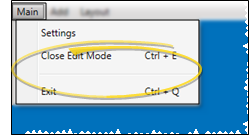
- When you have finished making changes to your sign-in screen, click the Main button on the Sign In Editor ribbon bar. You can then choose Close Edit Mode (or press Ctrl-E) to reactivate patient sign-in, or Exit (or press Ctrl-Q) to close the sign-in window. If you re-activate Patient Sign-In without first saving changes, any changes you have made will remain in effect until you fully exit Patient Sign-In. When you then re-launch Sign-In, the layout changes will be erased.
More Information
Change Sign-In Screen Elements - Use the graphic interface options to add text, images, animations, slide shows, patient reward prize lists, and videos, creating dynamic and informative Patient Sign-In greeting screens. See "Set Up Patient Sign-In Screen" for details.