Analysis Report
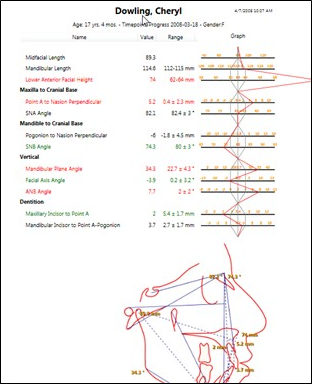
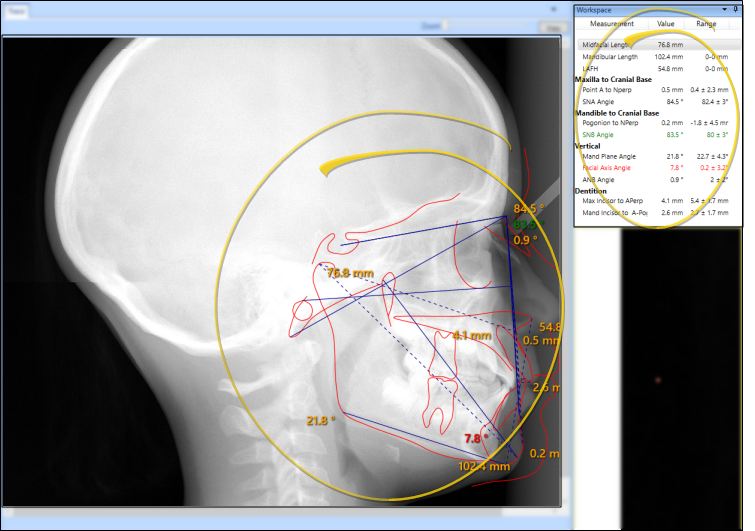
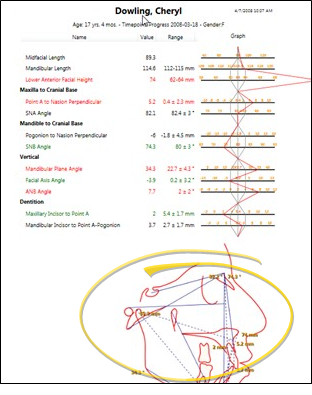
The Analysis report includes a header with basic information about the patient, the analysis details from the Workspace area, a wigglegram which graphs those values, and optionally a graphic of the trace and analysis.
Open the Analysis Report
-
View a Completed Ceph
- The report will open only if you are viewing a completed ceph tracing.
-
Open Analysis Report
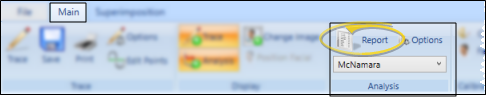
- Click the Report icon on the Analysis section of the Main ribbon bar to open the report.
Review, Print, Search and Save the Report
Enable / Disable Report Graphic
- Use the Print Trace on Report analysis option to select whether to include a graphic of the trace and analysis at the bottom of the Analysis report. See "Analysis Options" for details.
Color Coding
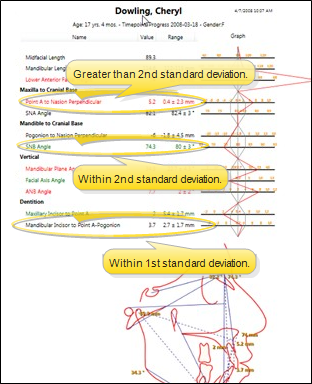
- Category groups and color-coding make the analysis easy to read: Black indicates the result is within the 1st standard deviation range of the measurement norm, green is within the 2nd standard deviation, red is greater than the 2nd standard deviation.
Print Results
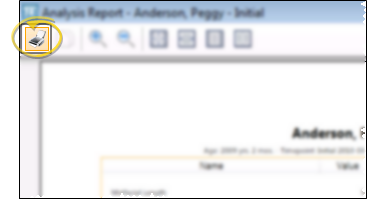
- Click  Print from the report header toolbar. For best results, use a color printer to retain the color-coding of the standard deviation ranges.
Copy Report Text
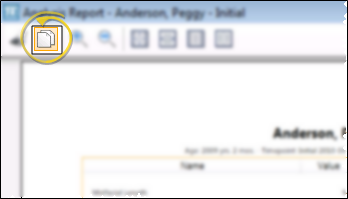
- Click and drag your mouse cursor to select the text you want to copy, then click Copy from the report header toolbar. The text is copied to your clipboard, ready to be used in another application, such as a word processor or email message.
Viewing Options
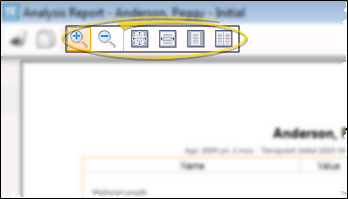
- Use the viewing options from the report header toolbar to change the size of the report text.
Search the Report
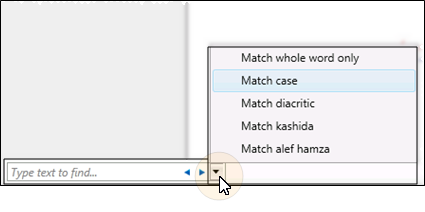
- You can type in the search box at the bottom of the window to look for any text within the report. Use the arrows to search for the Previous and Next instance of your text, and the drop down arrow to choose your search criteria.
Save Results to Patient Folder
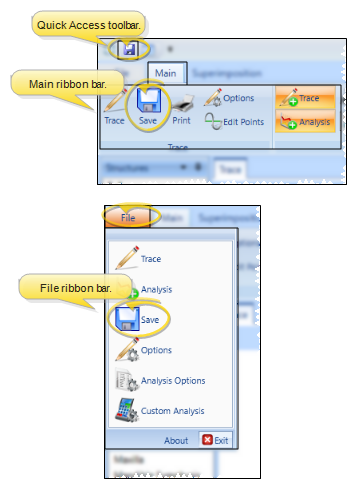
- Click Save in the SmartCeph Main or File ribbon bar, or your Quick Access toolbar, to save a copy of the report in the appropriate timepoint of the patient folder. You can then view the report from the Index layout, or from any layout that includes the Analysis Report image type.
caution
Each time you save the report, any existing Analysis report in that same timepoint will be overwritten.
Save Results to a File
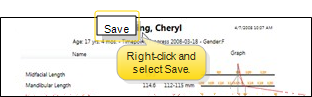
- Right-click anywhere on the report and select Save. Then enter a name and location for the report file. The report is saved with the .xps file format, which can be opened with your Microsoft internet browser.