
Visually Enhance a Ceph
Use the controls on the Effects section of the Main ribbon bar to visually enhance the ceph and help make finding points easier. Visual effects are not saved: They are automatically reset to the defaults when you exit and reopen SmartCeph.

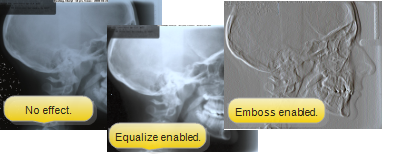
Equalize / Emboss
- Use these effects to show details within the ceph. Specifically, the Emboss tool helps to identify soft tissue structures.
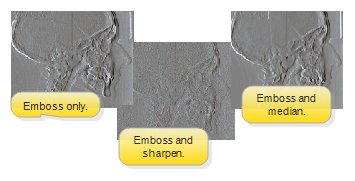
Sharpen / Median
- Use these effects in conjunction with equalizing or embossing to further delineate certain image details.
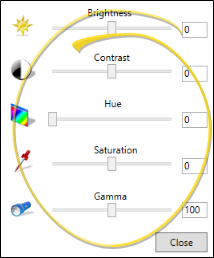
Brightness, Contrast, Hue, Saturation, Gamma Adjustment
- Select the Adjustment option to open the color effects, then use the sliders or adjustment values to change the ceph coloring as needed.
Reset Values - Select Reset to return all the effects and adjustments to their original settings. The values are automatically reset when you exit SmartCeph.