
Analysis Review
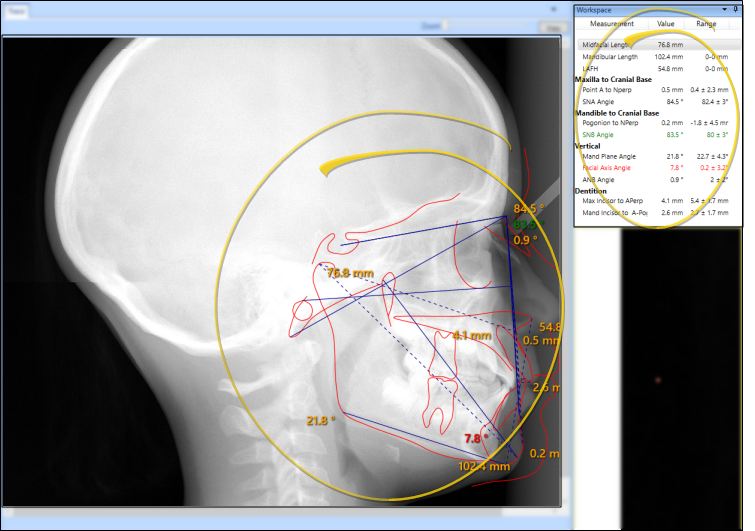
You can show / hide the completed analysis directly on the traced ceph, as well as review the information in text form in the Workspace area of the SmartCeph window.
Show / Hide Analysis
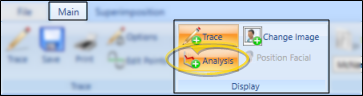
While viewing a completed tracing, click the Analysis icon on the Display section of the Main ribbon bar (or from the File ribbon bar) to show / hide the analysis results. When Analysis is enabled, the numerical values of the traced points of your ceph appear on your traced image, and the analysis text appears in your Workspace.
The results of your analysis depend upon your selected analysis options. See "Analysis Options" for detailsabout analysis selection, source, and values.
If you attempt to display an analysis for which you have not placed all the necessary points, a message will inform you.
Analysis Tools
Toggle Full Screen Mode
- Select the Full Screen Toggle icon from the Quick Access toolbar at the top of the SmartCeph window to maximize / minimize the SmartCeph work area. When full screen mode is enabled, SmartCeph minimizes the ribbon bar and pins the workspace and structures areas so that your main work area space is as large as possible, maximizing the visual presentation of your SmartCeph analysis.
Workspace Color-Coding- Category groups and color-coding make the analysis easy to read: Black indicates the result is within the 1st standard deviation range of the measurement norm, green is within the 2nd standard deviation, red is greater than the 2nd standard deviation.
Copy or Print the Image - Use the Copy button at the top of the work area, or the Print icons on the ribbon bar to make a copy or a print-out of the current image. The result will include an actual-size picture of the current image, including any overlays. For example, if you have displayed the tracing, analysis, and facial photo, the resulting picture will include all these items. But if you disable all other features so you are only looking at the ceph, your picture will include only the ceph image.
Copy Workspace Text - To copy the text to your clipboard, right-click anywhere in the workspace window, and select Copy. You may then paste the text in another application, such as the patient's treatment plan or a word processing document.
If your analysis does not seem to be correct, you might want to recalibrate and re-trace the ceph. See "Calibration" for details.