
Get Help
Ortho2 is committed to providing the highest level of technical support in the most effective methods possible. Many questions can be answered with our extensive online help resources. In addition, new users are encouraged to work with our Implementation team Phone: 800.809.0277 (8am-6pm Central Time); email: implementation@ortho2.com team. Or, contact us by email Support: ortho2support@ortho2.com; Sales: sales@ortho2.com; Feedback: ideas@ortho2.com, phone Support: 800.346.4504; Sales: 800.678.4644; Implementation Team: 800.809.0277, or fax 515.233.1454Telephone - Support: 800.346.4504; Sales: 800.678.4644; Implementation Team: 800.809.0277Email - Support: ortho2support@ortho2.com; Sales: sales@ortho2.com; Feedback: ideas@ortho2.comOr, browse support.ortho2.com for more options.
Open the Help Menu
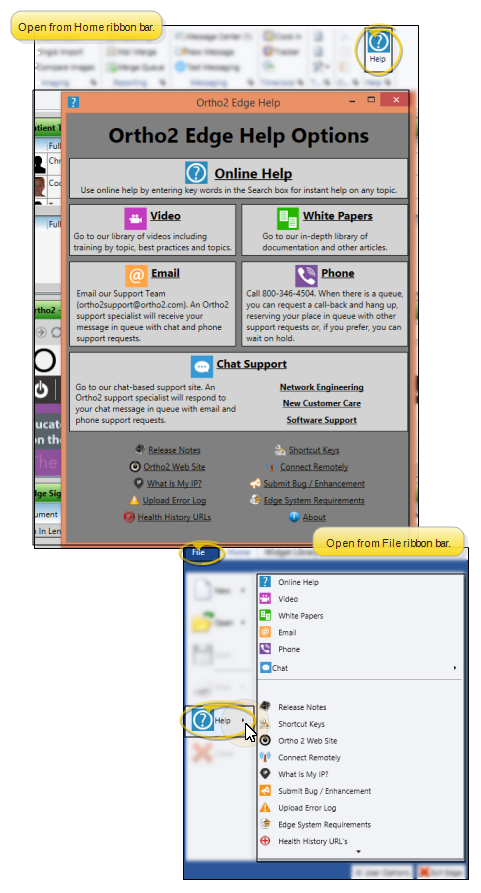
Click the Help icon in the Home ribbon bar or the Help option in the File ribbon bar to quickly get to the list of your help and support options.
Find Your Customer Number
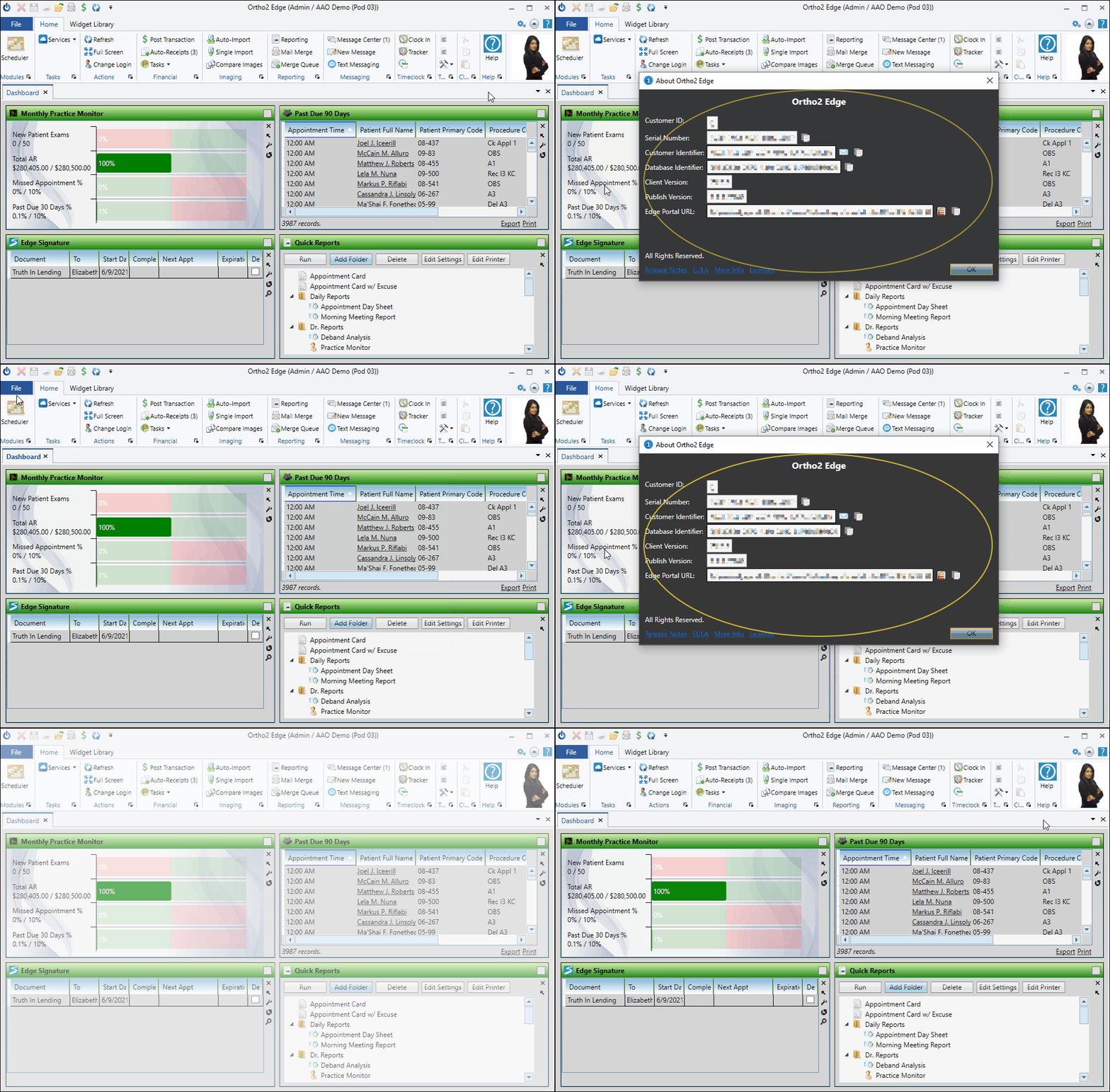
When you contact Ortho2, you will likely need to supply your Ortho2 customer number as well as your practice name. You can quickly find you customer number and other useful identification items by selecting About from the Help menu within Edge Cloud.
Online Help Articles
Open Online Help - Press the F1 key on your keyboard, or use the Online Help link from the Edge Cloud Help menu to open this Online Help system, which contains a wealth of articles and links to information about your Edge Cloud system and modules. You can type keywords to search for information, use the table of contents to look for closely related articles, follow links within the articles for additional information, use your browser functionality to move forward and back between articles, and more.
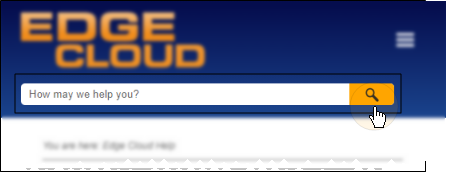
Search for Articles - Type keywords in the search bar at the top of the Help menu to open the online help system to a list of results matching your search. The search works best when you provide one or more full keywords (i.e. "refund", "appointment card", "sign treatment charts"). After you select an article to view, you can click the  Remove Highlight button to remove the highlighting of the text you searched on.
Expand / Collapse Details - The articles are designed to get you the help you need quickly by always showing you basic lists of instructions, and collapsing the details so you can quickly scan an article to find the information you are looking for. You can expand the details of individual sections by clicking the drop down button ( ), or use the Expand / Collapse All button at the top of the article to open or close all collapsed text and pictures within the help article you are viewing.
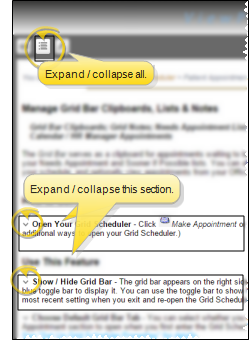
Table of Contents - The table of contents lists help articles grouped by module, feature, or function. You expand and collapse the help system table of contents in different ways, depending on the type of device you are using. If you are using a standard monitor display, use the links at the top of the window to show / hide the table. If you are using a tablet or other mobile device with a smaller screen, tap the menu button in the heading to open the table of contents list.
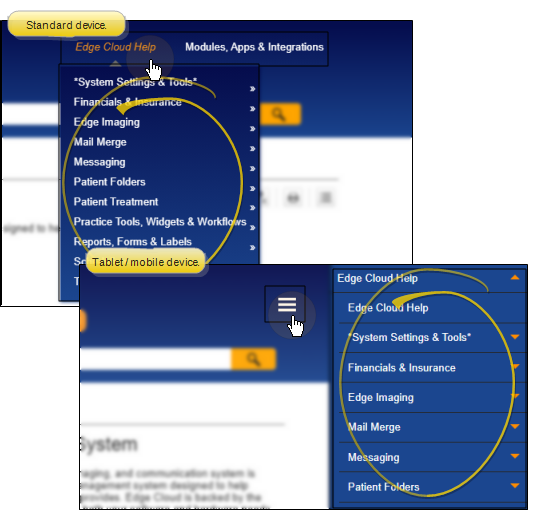
Follow Links - Your Edge Cloud help articles contain many links that you can use to gain further details about the feature you are working with. When you click a link to open another article, you can use the back and forward arrows in your browser to toggle among articles you have opened.
Print - Use the Printer icon at the top of the help window to open the print dialog, where you can print the currently displayed article, or save it as a PDF document for quick reference in the future.
More Help Options
Use the links from the Help menu to access the Ortho2 support resources. (The links may appear in a different order than shown below, depending on which menu you are using.)
Video Help - Use the Videos link from the Edge Cloud Help menu to open the Ortho2 website to the video tutorials page. After logging in, use the videos to brush up on your skills, or to learn a few new hints and tips to use with your system. You can find a comprehensive collection of beginner's and advanced user's training videos and webinars on our Support & Learning > Visual Help center.
(A valid Ortho2 customer login is required to run video tutorials, webinars, and training programs.)
White Papers - Use the White Papers link from the Edge Cloud Help menu to open the Ortho2 website to the Support and Learning > Documentation page, where you can find out all about Edge Cloud – anything from product information, to quick start guides assisting you with your Edge Cloud system and system modules.
Email Help - Use the email Support: ortho2support@ortho2.com; Sales: sales@ortho2.com; Feedback: ideas@ortho2.com link from the Edge Cloud Help menu to open your email application, with a new message directed to us at ortho2support@ortho2.com. Your message will be received by an Ortho2 support specialist, who will respond to your message in queue along with chat and phone support requests.
Phone Help - Call our Ortho2 support representatives at 800.346.4504 from 7 AM - 7 PM Central Time, Monday - Friday for live assistance. Or, use the phone Support: 800.346.4504; Sales: 800.678.4644; Implementation Team: 800.809.0277 link from the Edge Cloud Help menu to open the Ortho2 website to our Contacts page, listing all our phone numbers. If there is a queue when you call, you can either request a call back and hang up, reserving your place in line, or remain on hold. At other times, you may leave a message to be called back during our support hours.
Chat Support - Use a Chat link from the Edge Cloud Help menu to open a chat session for real-time help from ourNetwork Engineering,Implementation team, or Software Support teams. You can also launch chat sessions from the Ortho2 website Contacts page.
Release Notes - Use the Release Notes link from the Edge Cloud Help menu to open the Release Notes document, which describes the most recent updates available for your system.
Ortho2 Website - Use the Ortho2 Web Site link from the Edge Cloud Help menu to to open our company website to the home page, www.ortho2.com. You can also view the Ortho2 website, or any other website, directly from within Edge Cloud with your Browser widget.
What is My IP? - Use the What is My IP link from the Edge Cloud Help menu to determine the internet protocol address of the computer you are working on. This is generally used for diagnosing networking other issues.
Upload Error Log - Use the Upload Error Log link from the Edge Cloud Help menu to help diagnose and fix certain system errors.This is generally used only under the direction of an Ortho2 representative. Once the log has been uploaded, click Ok to clear the message box.
Health History URL's - Use the Health History URL's link from the Edge Cloud Help menu to open a page of web site links that you can add to your own web site to allow your patients to access the health history from anywhere with an Internet connection.
Shortcut Keys - Use the Shortcut Keys link from the Edge Cloud Help menu to open the Shortcut Keys reference guide, in PDF format. You can also download the guide from the Ortho2 website > Support and Learning > Edge Cloud Documentation page.
Connect Remotely - While working with an Ortho2 support representative, you may be asked to use the Connect Remotely link from the Edge Cloud Help menu to allow us temporary access to your system for diagnostic, training, and other support purposes.
UserVoice - Submit Bug / Enhancement - To provide better service and solutions for our customers, Ortho2 is pivoting away from UserVoice, and toward a more robust feedback opportunity. During the transition to a new system, please use our support.ortho2.com website, or email ideas@ortho2.com. See "Enhancement Requests / Feedback Forum" for details.
Edge Cloud System Requirements - Use the Edge System Requirements link from the Edge Cloud Help menu to open the Edge System Requirements application, which can help you determine how well-suited your computer is for running Edge Cloud. See "Edge System Requirements" for details.
About - Use the About link from the Home ribbon bar > File menu or the Home ribbon bar > Help window to open a window that displays information about your Edge Cloud system, including the revision number, and your customer identifiers.