
Install Edge Cloud
You can install Edge Cloud on multiple computers in your practice, and have as many sessions of Edge Cloud open simultaneously as you have active licenses available.
Get Installation Help
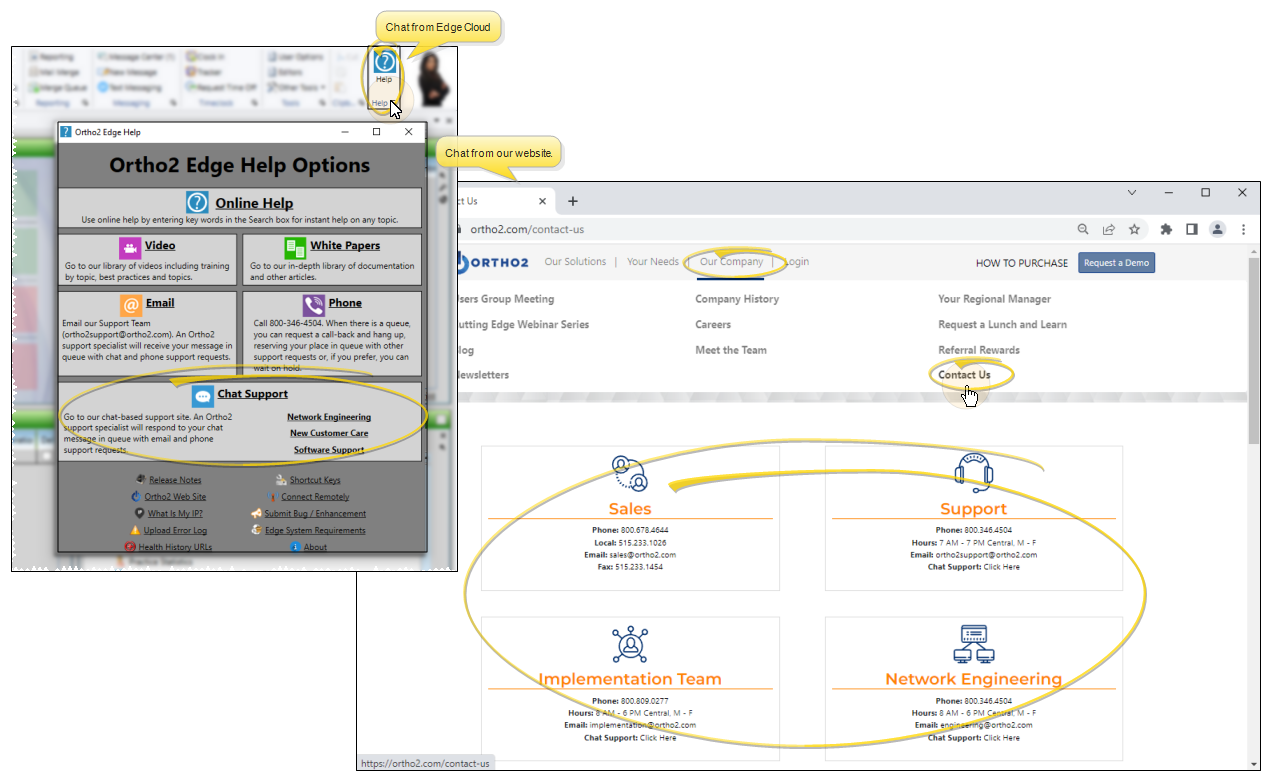
For more assistance, please contact the Ortho2 Network Engineering team at 800-346-4504, or engineering@ortho2.com. Or use the Chat link from the Edge Cloud Help menu or from the Ortho2 website Contacts page.to open a chat session for real-time help from ourNetwork Engineering,Implementation team, or Software Support teams.
Confirm Computer Compatibility
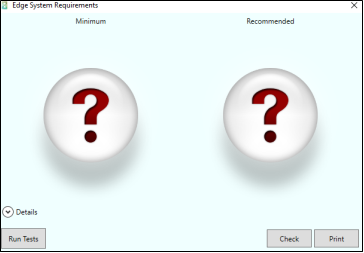
Before installing Edge Cloud on a new computer, we suggest you first confirm the computer is compatible. Use the Edge System Requirements link from the Edge Cloud Help menu to open the Edge System Requirements application, which can help you determine how well-suited your computer is for running Edge Cloud. . See "Edge System Requirements" for details about running the application. If you need further assistance about upgrading equipment, please contact your Ortho2 Regional Manager.
Locate Customer Identification Numbers
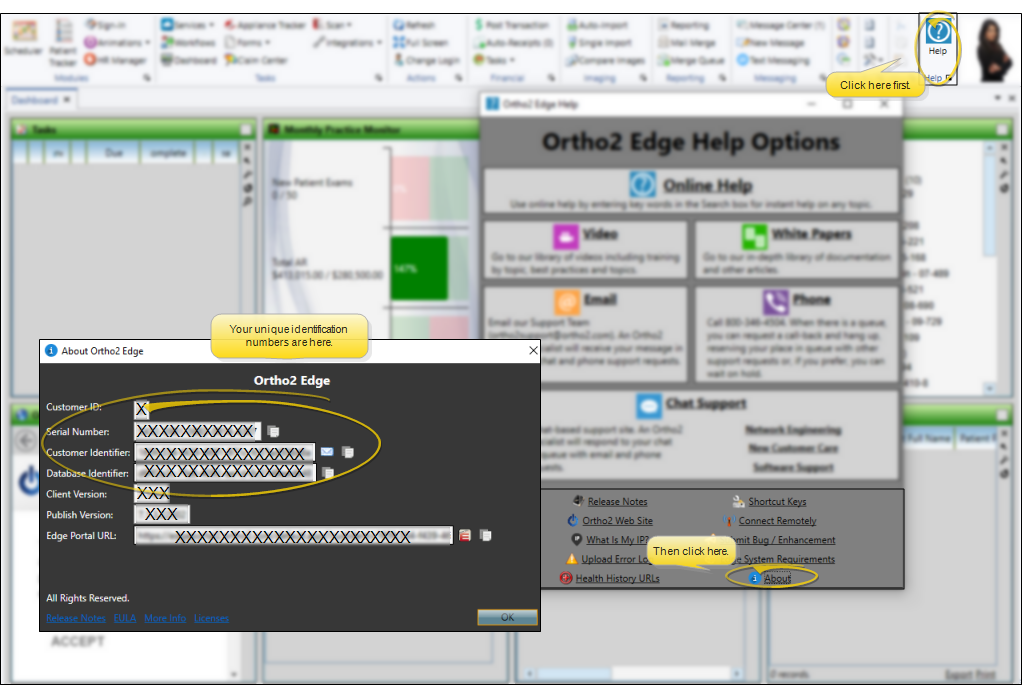
As you install Edge Cloud, you will be asked for your unique Ortho2 customer identification numbers. You can find these by launching Edge Cloud on a different computer, and opening the Help menu. Then, choose About. Or, you can call Ortho2 support for assistance.
Download and run the Edge Cloud Installer
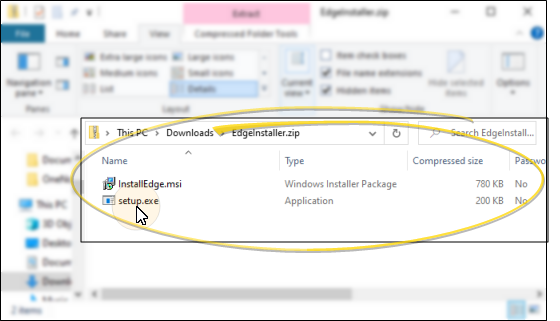
Open an Internet browser on the computer you want to install Edge Cloud on. Then download and run the installation file: http://edgeclientinstall.orthoii.com/EdgeInstaller.zip.
Install Edge Cloud
As Edge Cloud is installed on your computer, you will be prompted to enter your unique Ortho2 customer identification numbers. You may also be asked to install or update required packages. Accept each of these prompts. When the installation has finished, open Edge Cloud a few times, and accept any additional installation / update prompts. Once everything has been fully installed and updated, you should be able to log in.
Confirm Datacenter and Database
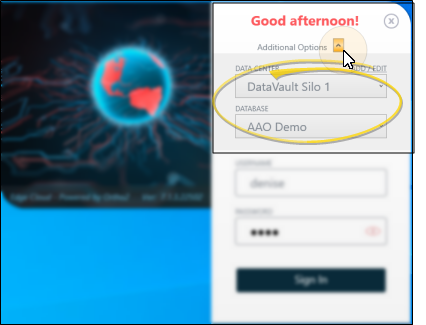
At the log in prompt, you can expand the Additional Options, and confirm that the Datacenter silo and Database match those you want to connect to before continuing on to Edge Cloud.
Set Up This Computer for Updates
Use the Edge Cloud Update Settings to determine how this computer should be updated with the most recent system files. See "Edge Cloud Update Settings" for details.