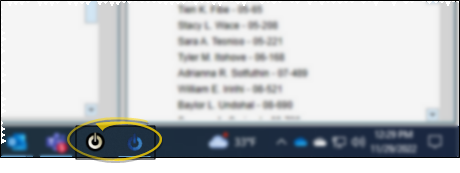
Pin Edge Cloud to Your Taskbar
Use the "pin" feature from the Windows Start menu to add Edge Cloud to your computer taskbar, making it always visible and available to you. This time-saving technique makes it easy to locate and launch the most recent version of your Edge Cloud system with a single click.
Pinning via Start Menu vs Application Right-Click - When you pin an application to your taskbar by right-clicking the icon while it is running on your computer, you launch a specific version of that application which can potentially bypass important system updates. Instead, we strongly recommend pinning Edge Cloud from the Windows Start menu, as described below, which assures your system always looks for updates, and keeps you using the most recent version of Edge Cloud available.
Remove Existing Edge Cloud Pins
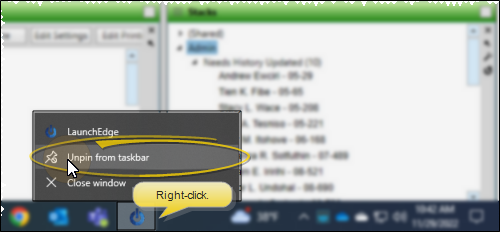
To be sure you pin Edge Cloud from the Windows Start menu, and not from the application itself, you should remove any existing Edge Cloud pins. To do this, with Edge Cloud open on your computer, right-click the Edge Cloud icon on your taskbar and select "Unpin from Taskbar". You can then continue with the next step. If the Unpin option is not available, there are no existing Edge Cloud pins, and you can continue.
Pin Edge Cloud to the Taskbar
When you use the "pin" feature from the Windows Start menu so you can launch Edge Cloud from the taskbar, you can be sure your Edge Cloud system will always be up-to-date. Note that this is a computer-specific task. You will want to repeat these instructions on each computer where you want an Edge Cloud taskbar icon. Please note that Window menu options can vary slightly between operating systems, so the terms and pictures below may differ somewhat from yours.
-
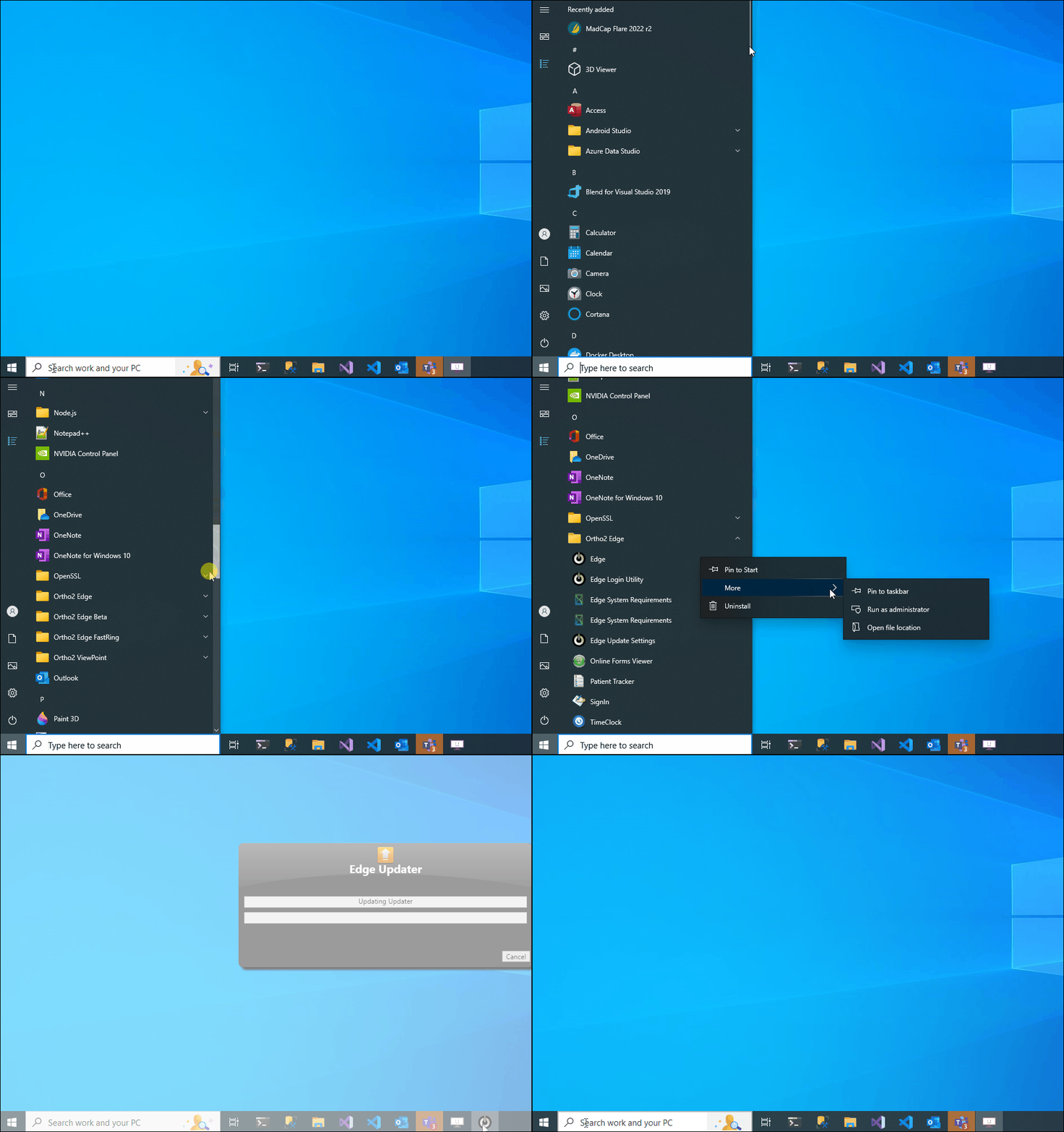
Open Your Windows Start Menu - Open the Start menu by clicking the Windows icon in the taskbar, or use the Windows key on your keyboard if it exists (typically found near the `ALT` key.)
-
Locate the Ortho2 Edge Folder - Navigate to the Ortho2 Edge folder, and expand the contents. If the list of applications and folders does not appear right away when you open the Start menu, select the All Programs or All Apps link near the top of the Start menu screen.
-
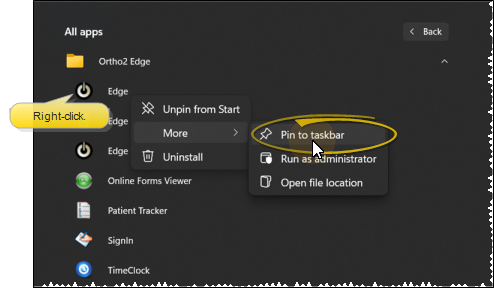
Pin Edge to the Taskbar - Right-click the Edge icon and select "Pin to taskbar". Depending on your environment, you may have to select More or Additional Options first.
Launch Edge Cloud from the Taskbar
Once you apply the pin to the taskbar, you can simply click the icon to launch Edge Cloud. You'll then notice two Edge Cloud icons in the taskbar: the pinned shortcut and the running application. When you close all instances Edge Cloud, the icon representing the running application will be removed, and only the pinned shortcut icon will remain.