
Edge Cloud Update Settings
Use the Edge Cloud Update Settings to determine how this computer should be updated with the most recent system files.
Get Help Updating Edge Cloud
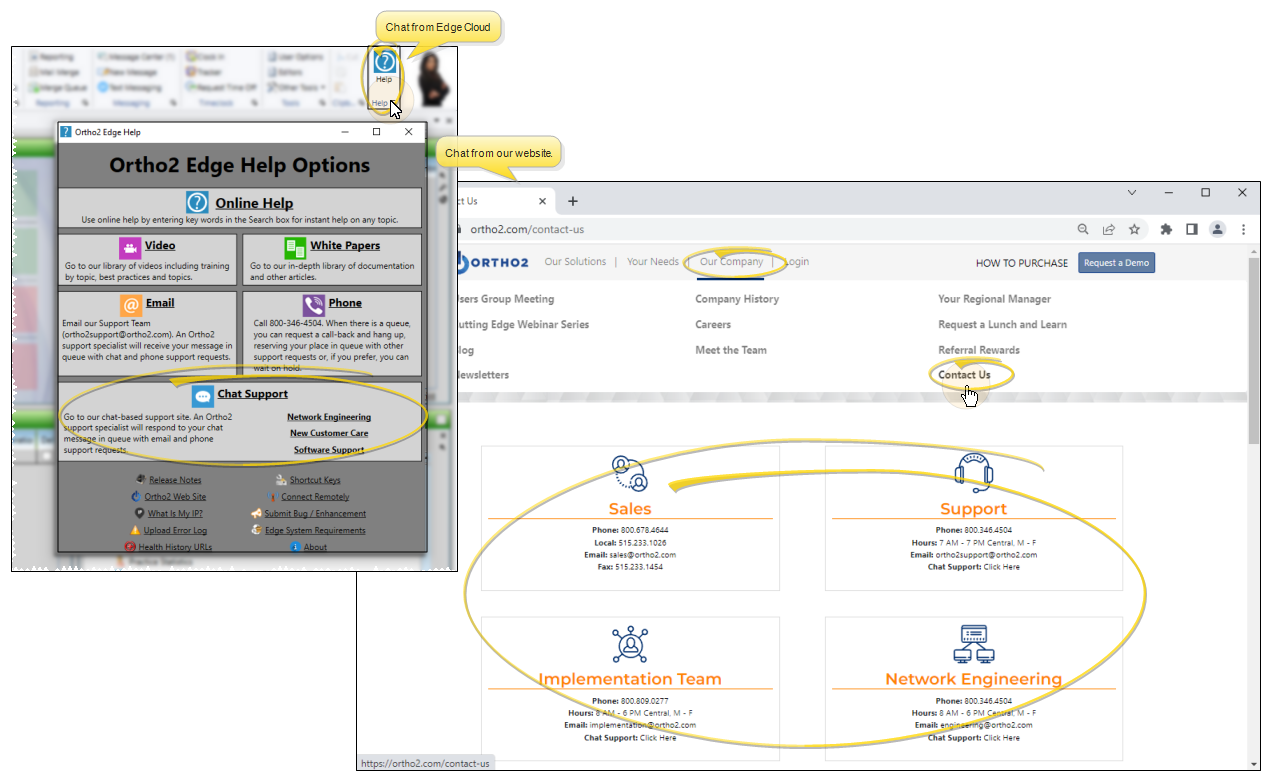
For more assistance, please contact the Ortho2 Network Engineering team at 800-346-4504, or engineering@ortho2.com. Or use the Chat link from the Edge Cloud Help menu or from the Ortho2 website Contacts page.to open a chat session for real-time help from ourNetwork Engineering,Implementation team, or Software Support teams.
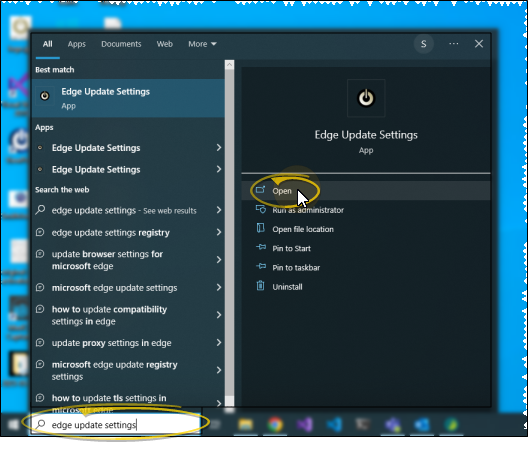
Open Edge Update Settings
On your computer, open the Ortho2 > Edge > Edge Update Settings application.
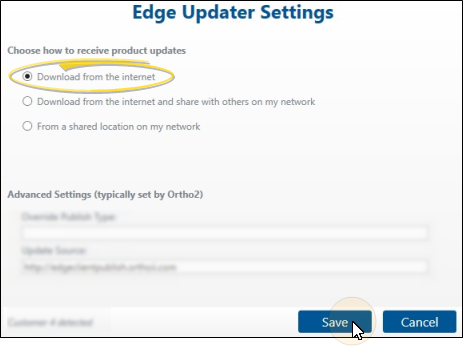
Choose Settings for This Computer
Machine-Dependent Setting - You set up the Edge Update Settings for each computer on your network individually.
Choose how this computer should obtain the latest Edge Cloud program files.
Download From the Internet
\Recommended**
This is the default setting when Edge Cloud is first installed on a computer. With this setting, whenever you log into Edge Cloud, your system will check for the most recent files and prompt you to restart and update Edge Cloud as needed. Unless your firewall or other system configuration disallows it, we highly recommend you use this setting for all your Edge Cloud computers.
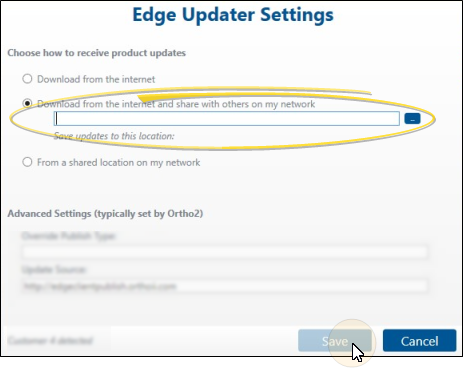
Download From the Internet and Share
If the "Download from the Internet" option does not work on one or more of your Edge Cloud computers, you can use this option to set up one computer to act as an internal update server. Be sure the "Save Updates Here" location you enter is accessible to all of your Edge Cloud computers. With this setting, whenever you log into Edge Cloud on this computer, your system will check for the most recent files and prompt you to download the files to your update location in addition to updating Edge Cloud on this computer as needed.
Use This Setting on Only One Computer - If you choose to use this method, be sure only one computer has this option enabled, and the rest of your computers are set to either "Download From the Internet", or "From a Shared Location".
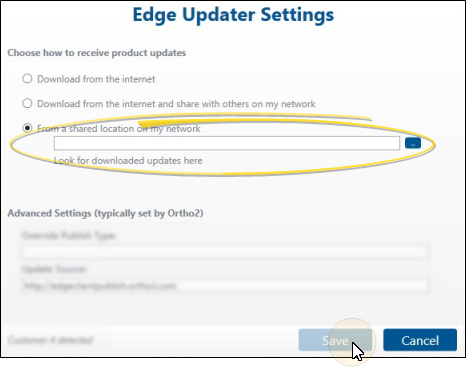
From a Shared Location on My Network
If you have set up a computer to be your update server with the "Download From the Internet and Share" option, you can use this option to pull updates from that computer to this computer. Be sure to enter the location where the updates are stored exactly as it is set up on your update server computer. With this option, whenever you log into Edge Cloud, your system will check the downloaded update files, and prompt you to update this computer as needed.
Save Your Changes
Click Save to save the changes you have made and close the editing window.
