
Assign User Options
Use the Assign User Options tool to copy specific Edge Cloud settings from your own system log in to someone else's Edge Cloud system log in. This tool is especially useful when onboarding new staff, or when you begin to use new Edge Cloud features and want everyone on the same page. Your security rights must include full access to the User Options Assignment setting in the Practice Administration security group for this feature to work for you.
Open the Assign Options Window
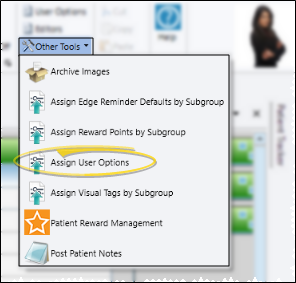
Select Other Tools from the Tools section of the Home ribbon bar. Then select Assign Options.
Choose Settings to Copy
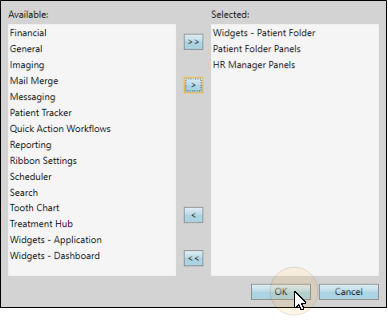
Click the settings you want to work with, then click the arrows to add or remove it from the options you want to copy to other users. You can select options individually, or use your Ctrl or Shift key to select multiple options simultaneously. You can also use the double arrows to include / exclude all settings. When all the settings you want to copy to other operators are selected, click Ok to continue.
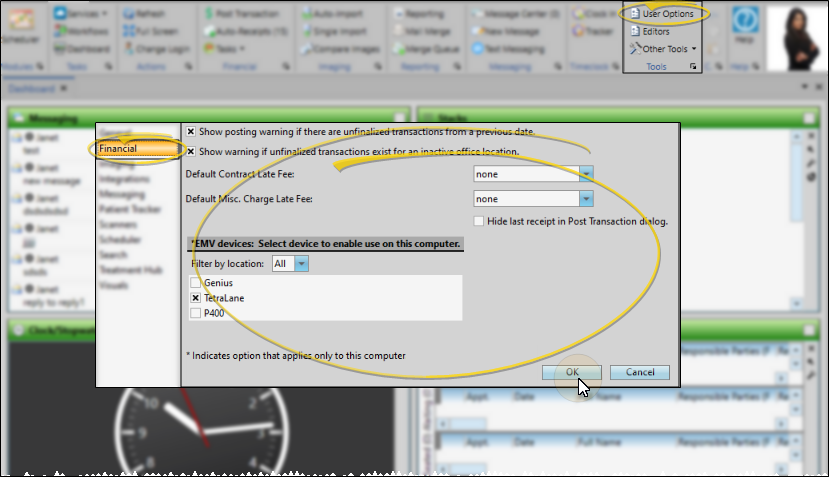
Financial
Select Financial to copy the settings from your Financial User Options, including your default late fees.
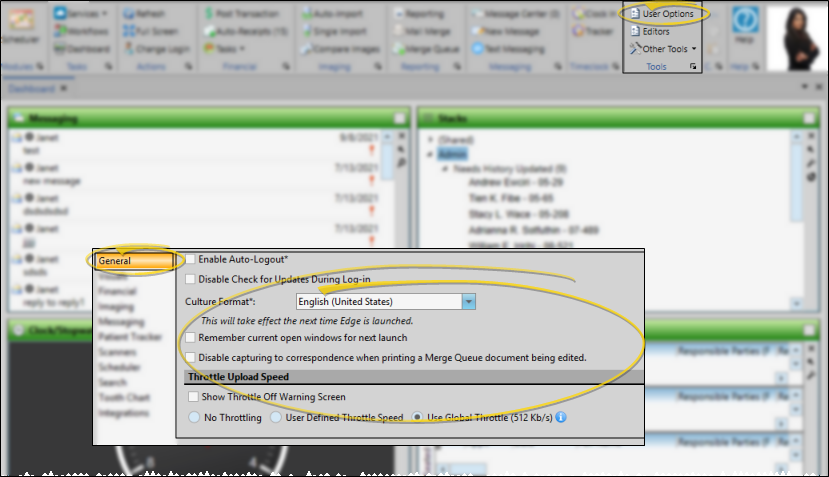
General
Select General to copy the settings from your General User Options, including how log in and mail merge features behave.
HR Manager Panels
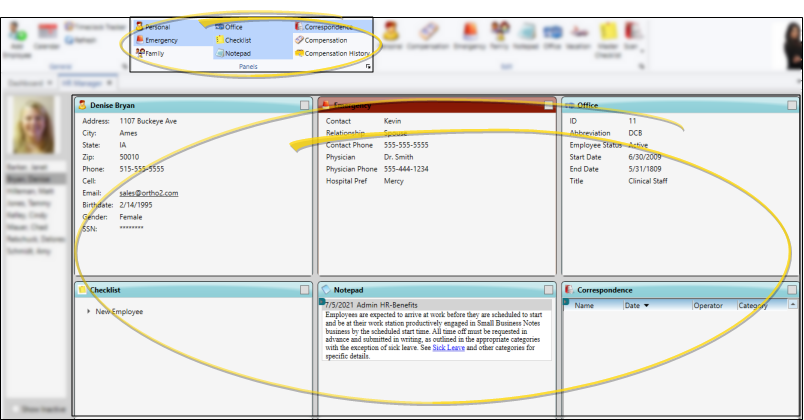
Select HR Manager Panels to copy which employee record information panels are open by default when you first open the HR Manager.
Imaging
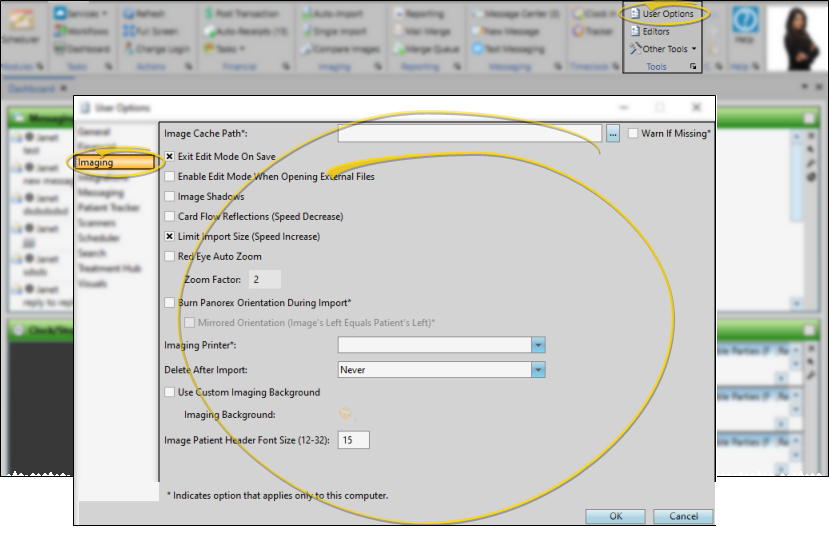
Select Imaging to copy the settings from your Imaging User Options.
Mail Merge
Select Mail Merge to copy the settings from your Mail Merge Documents editor, including the document type and envelope file assigned to your letters.
Messaging
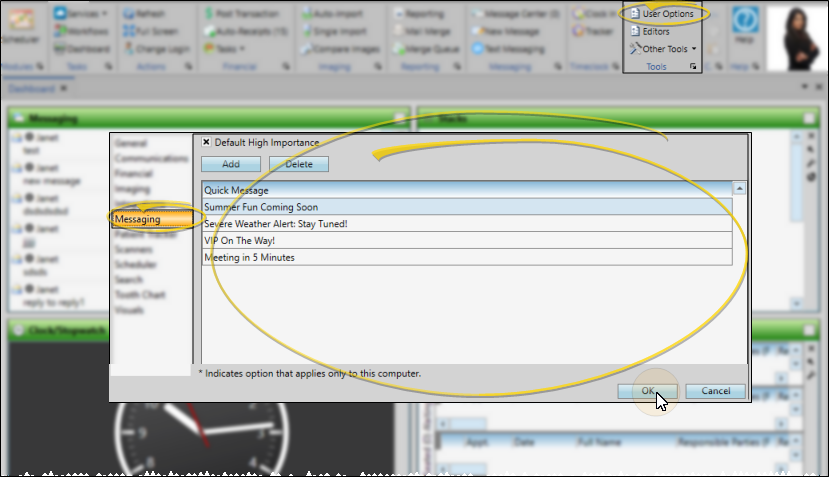
Select Messaging to copy your Messaging User Options, which includes your High Importance default and your Quick Message list.
If you assign this setting to other users, the selected users' Quick Message lists will be overwritten by your list.
Patient Folder Panels
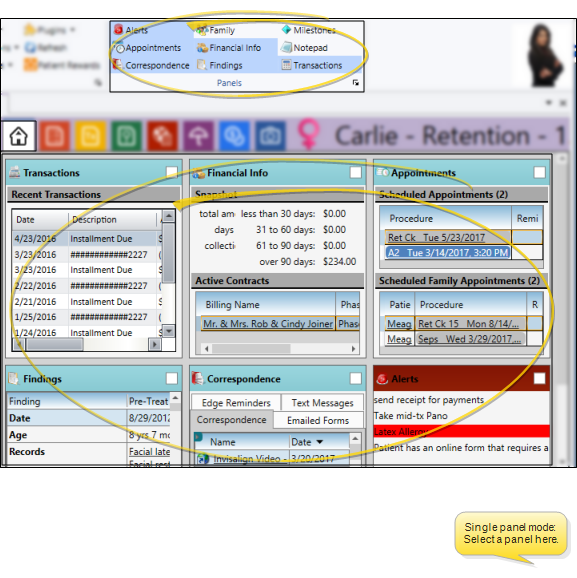
Select Patient Folder Panels to copy which Home page panels are active when you open a patient folder.
Patient Tracker
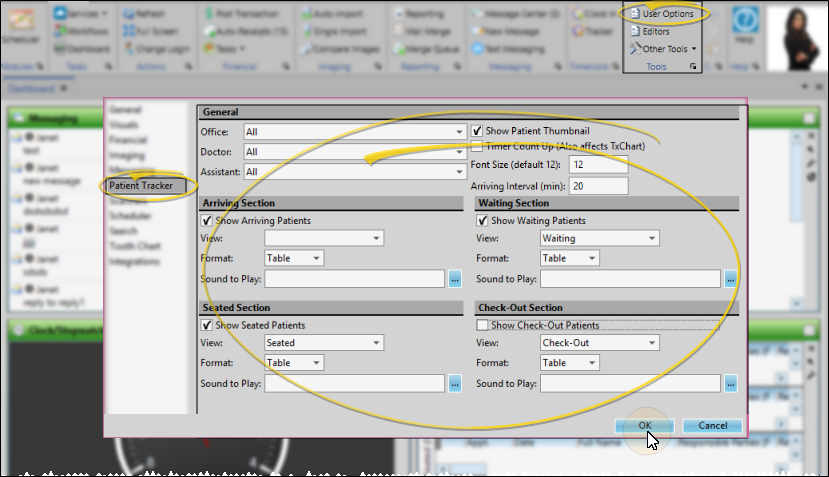
Select Patient Tracker to copy the display settings for your Patient Tracker module from your Patient Tracker User Options.
The settings you copy here are the display settings for the Patient Tracker module. These are not the same as the settings for the Patient Tracker widget, which are set within the widget, or in your Patient Tracker editor. The editor settings are system-wide: Any change made by any operator in the editor is automatically applied to everyone's Patient Tracker.
Quick Action Workflows
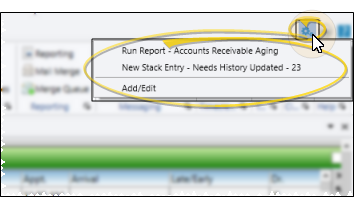
Select Quick Action Workflows to copy the list of workflows in your quick actions list.
Reporting
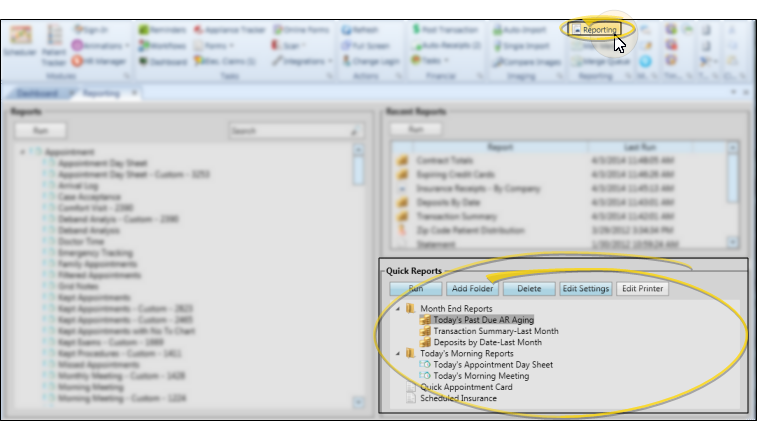
Select Reporting to copy your list of Quick Reports, along with your quick report settings.
Ribbon Settings
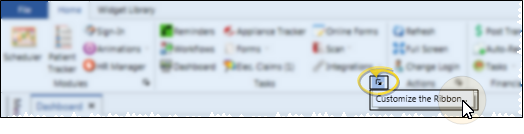
Select Ribbon Settings to copy your ribbon bar settings, including which icons are displayed, and the type and size of the icons.
Scheduler
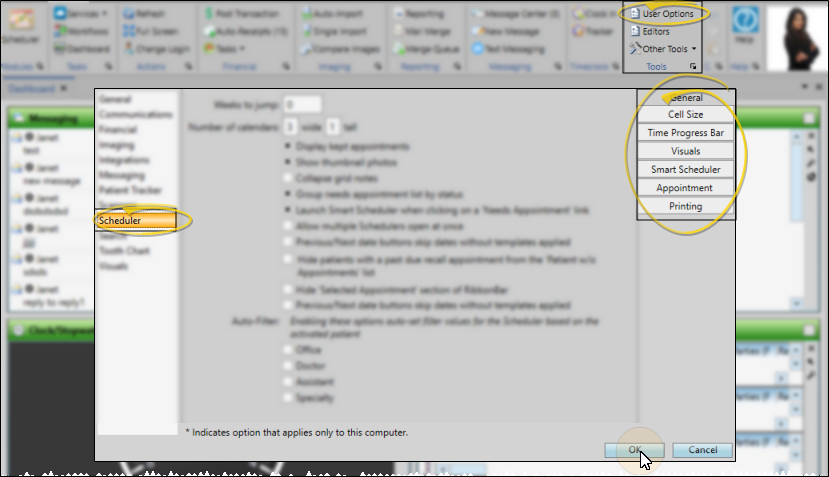
Select Scheduler to copy the settings from all the tabs of your Scheduler User Options.
Search
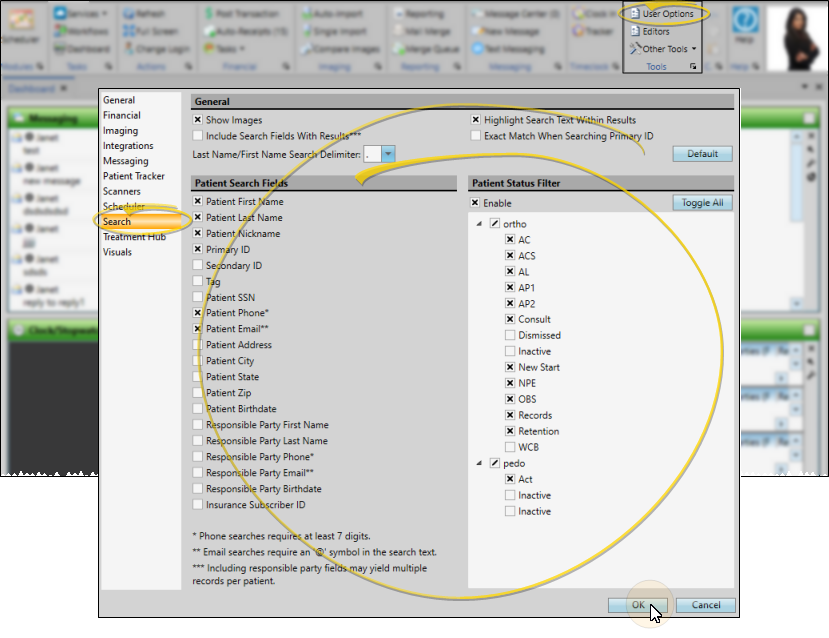
Select Search to copy the settings in your Search User Options, which includes the default data types you can search by.
Tooth Chart
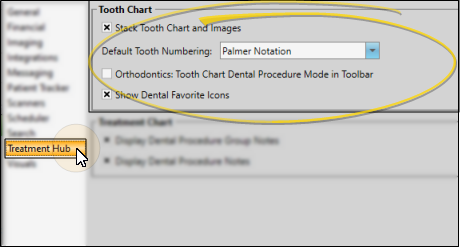
Select Tooth Chart to copy the settings from the Tooth Chart section of your Treatment Hub User Options, including your default tooth numbering method.
Treatment Hub
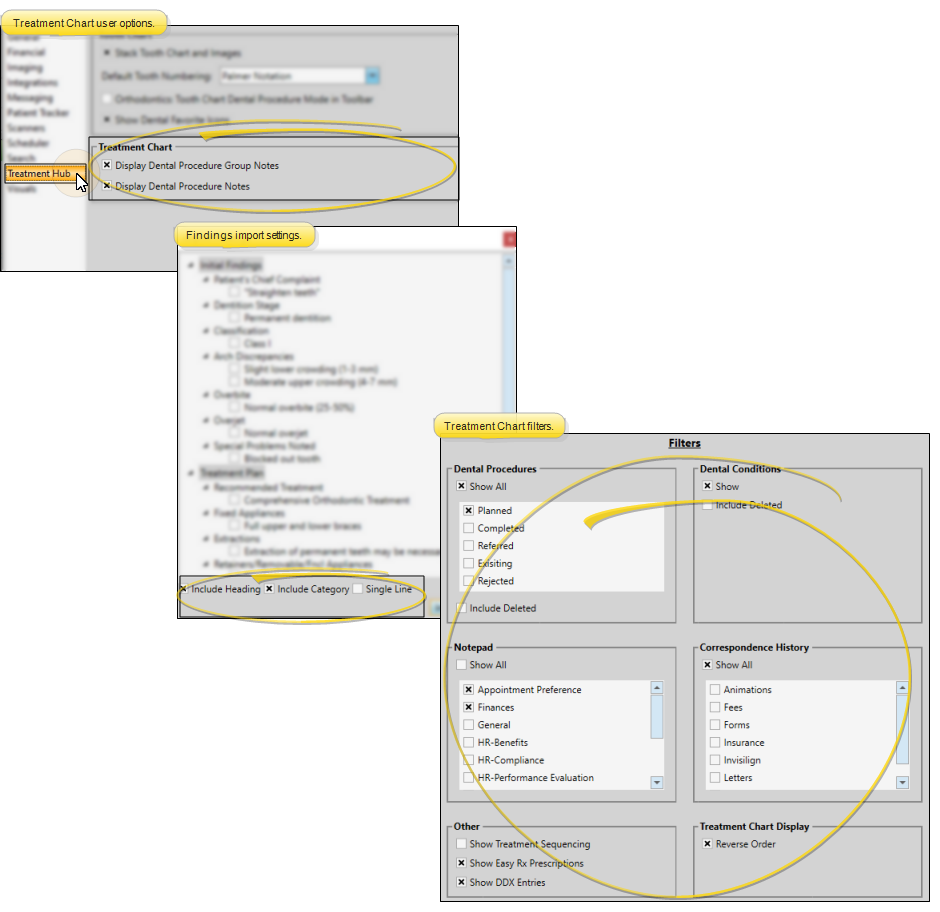
Select Treatment Hub to copy the settings from the Treatment Chart section of your Treatment Hub User Options, your default Findings Import settings, and your treatment chart filter settings.
Widgets - Application / Widgets - Dashboard
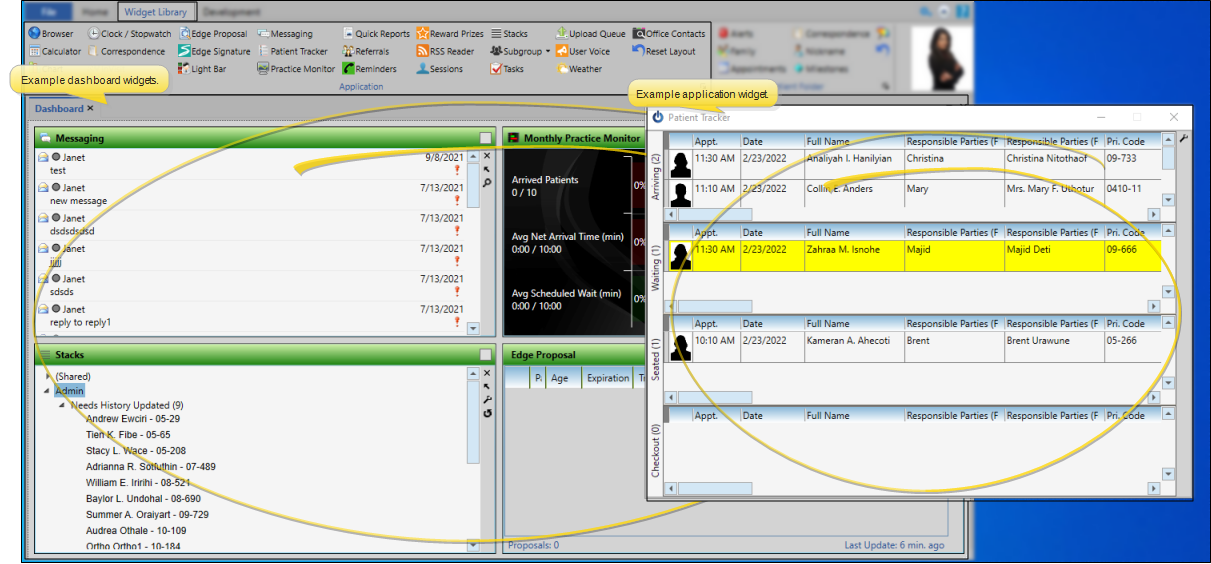
Select Widgets - Application or Widgets - Dashboard to copy the widgets, along with their settings, that are opened as application widgets or opened on your Dashboard when you log into Edge Cloud.
Share Practice Monitor Statistics Settings
After setting up your Practice Monitor data and goals, you can share those statistic settings with other Edge Cloud users.
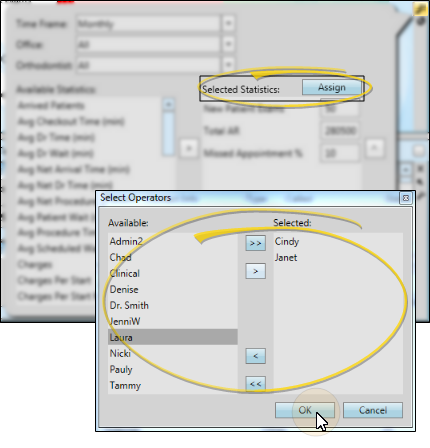
While viewing the Practice Monitor settings window, click the Assign button, then select the Edge Cloud users to share with. When those users open their Practice Monitor widget, their statistic settings will update to match yours. This does not change their time frame, office, or orthodontist settings.
Widgets - Patient
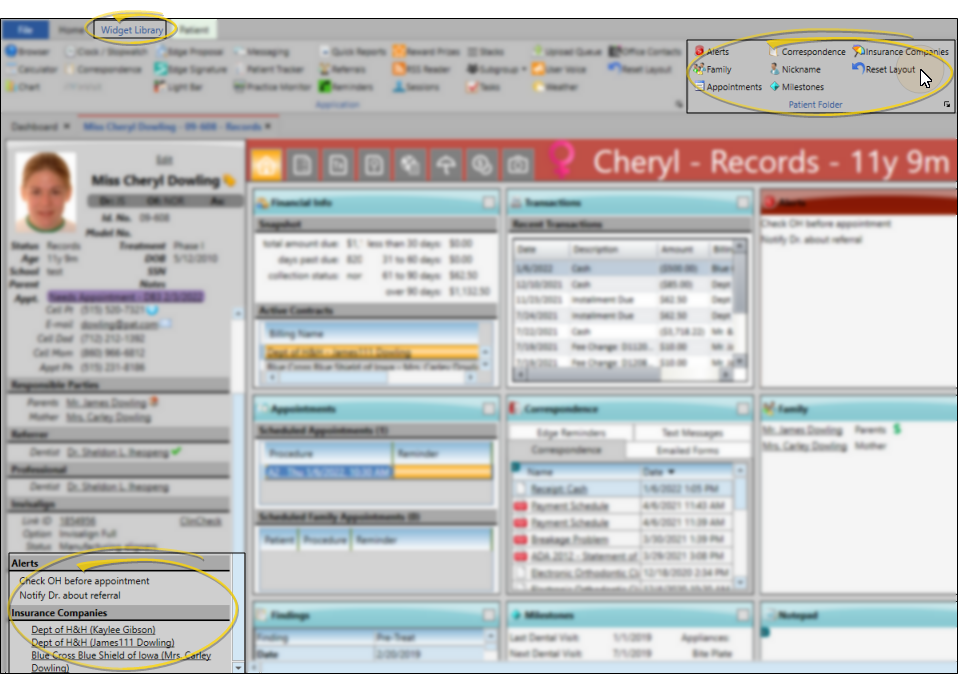
Select Widgets - Patient to copy the patient folder widgets that are in the Patient Information Panel when you open a patient folder.
Choose Operators to Copy to
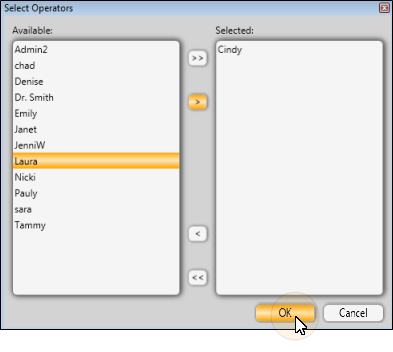
Select one or more Edge Cloud operators, then click the arrows to add or remove them from the list of people you want to copy your settings to. You can select options individually, or use your Ctrl or Shift key to select multiple people simultaneously. You can also use the double arrows to include / exclude all operators.
Finish
When all the operators you want to include are selected, click Ok to continue. The selected options are applied to the specified users immediately, whether or not the user is currently logged into Edge Cloud. However, the user might need to refresh their Edge Cloud screens to see the effects.