
Application Widgets
An application widget displays your chosen widget in its own window, so it remains available to you no matter what else you are doing in Edge Cloud. This feature provides instant access to the tools and information you need most often, and gives you a way to interact with patients and parents most effectively.
Open an Application Widget
From the Application section of the Widget Library ribbon bar, choose the widget you want to work with, and select to open it as an Application widget type. The widget appears in its own window on your screen.
Assign Settings Tool - These settings are specific to you, and will follow you on whatever computer you log into: Other operators may have different settings. If another operator has the settings you want to use, that operator can use the Assign Options tool to copy those settings to you, or vice-versa.
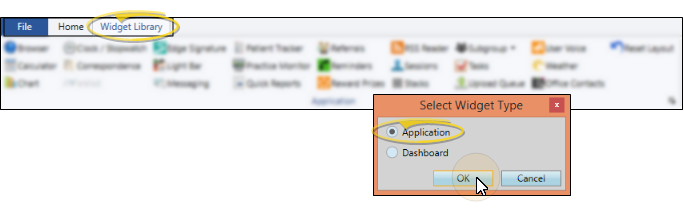
Available Widgets
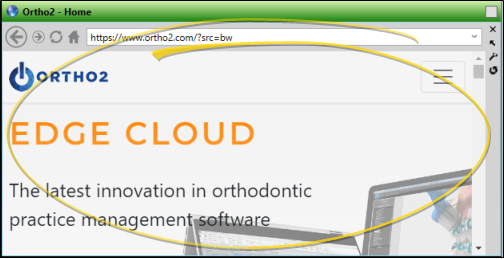
Browser
Use the Browser widget to open the Ortho2 web site, or any other Internet site, directly from within your Edge Cloud system. (An active Internet connection is required for this feature to work.) See "Browser Widget" for details.
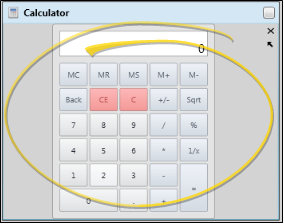
Calculator
Use the Calculator widget to keep an easy-to-use calculator active on your Edge Cloud screen. See "Calculator Widget" for details.
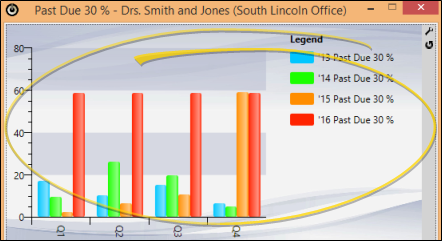
Chart
Use the Chart widget to get an overall picture of patient activity, such as the percentage of patients that are past due or the percentage of missed appointments, in a variety of formats. You can also use the Chart widget to compare data among your orthodontists and/or offices. Your selected chart data, office, and orthodontist selections are listed in the Chart widget header for easy recognition of the data you are viewing. See "Chart Widget" for details.
Clock / Stopwatch
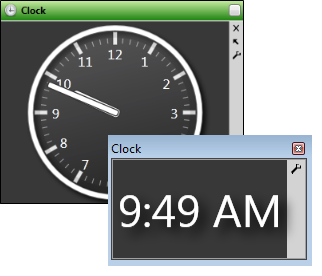
Use the Clock / Stopwatch widget to keep an easy-to-read clock or interactive stopwatch on your Edge Cloud screen. The clock widget uses the time from your computer workstation. See "Clock / Stopwatch Widget" for details.
Correspondence
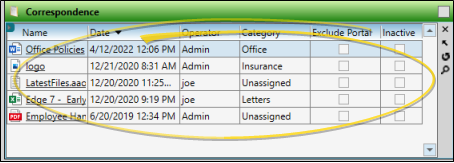
Use the Correspondence History widget to keep your list of practice-specific correspondence and documents at your fingertips. See "Correspondence Widget" for details.

inVisit
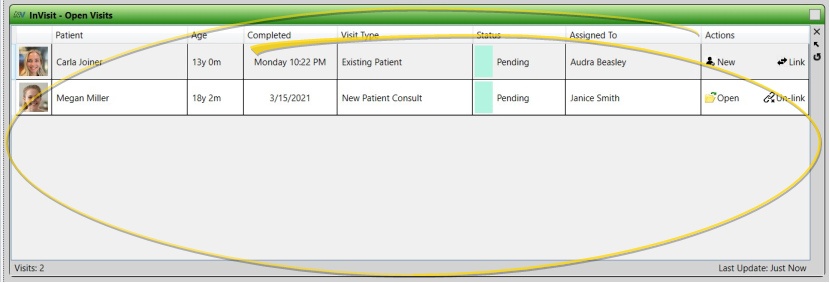
Use the inVisit widget to stay on top of your patients' virtual visits in real time. The widget lists your open virtual visits, and is refreshed regularly to keep you up-to-date. You can click a visit summary to launch inVisit within Edge Cloud. In addition, you can link first-time inVisit users to existing Edge Cloud patient folders, or create new Edge Cloud patient folders auto-filled with the inVisit patient data. You can also open Edge Cloud patient folders from the inVisit widget. See "inVisit Widget" for details.
Edge Proposal
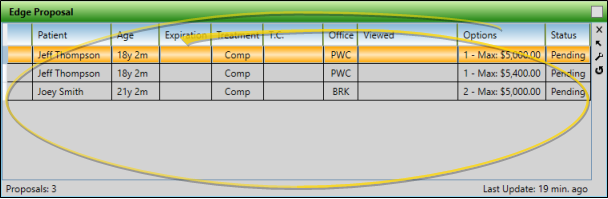
Use the Edge Proposal widget to review and manage your patient contract proposals. The widget lists the proposal expiration date, whether the responsible party has viewed the proposal with theEdge Proposal app, and the status. You can filter the widget results to view only the proposals relevant to you. In addition, you can open the patient folder to the proposal page and share the proposal with responsible parties directly from the widget. See "Edge Proposal Widget" for details.
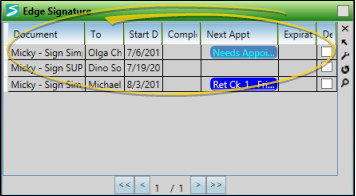
Edge Signature
Use the Edge Signature widget to digitally sign documents, send email invitations for signatures, and review complete and deleted Edge Signature documents. See "Edge Signature Widget" for details.
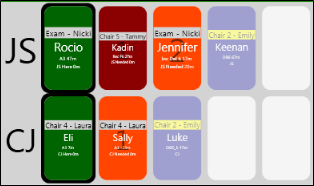
Light Bar
Use your Light Bar widget to monitor active involvement with patient appointments once they have been processed as "seated" in your Patient Tracker. See "Light Bar Widget" for details.
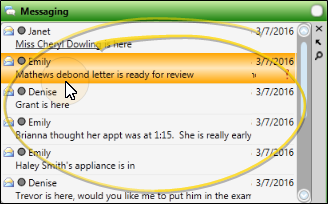
Messaging
Use the Messaging widget to manage messages from other Edge Cloud operators, as well as professionals that use your Edge Portal Premium app. You can read your messages, send messages, and perform most message actions from the widget. See "Messaging Widget" for details.
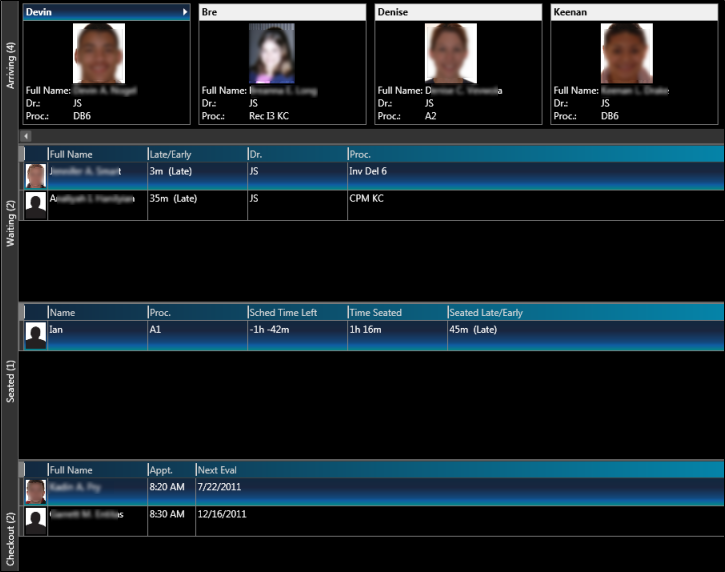
Patient Tracker
Use the Patient Tracker to see which patients have signed into your office, whose appointments are currently in progress, and where assistants and orthodontists should concentrate next. See "Patient Tracker" for details and setting options.
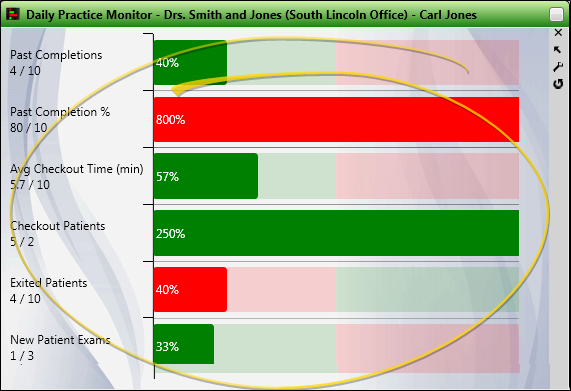
Practice Monitor
Use your Practice Monitor widget to keep real-time statistics, and your progress toward practice goals available at all times. See "Practice Monitor Widget" for details.
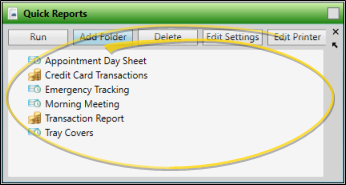
Quick Reports
You can use the Quick Reports widget to organize and run your most frequently-used reports and patient forms without opening the Reporting window. See "Quick Reports" for details.
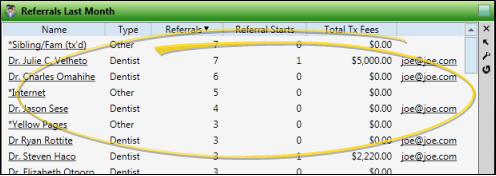
Referrals
Use your Referrals widget to see up-to-date trends among your referral sources. You can view referrals for any range of dates or time periods, include only certain types of referrals, narrow the list by orthodontist or office, and sort the results by a number of data types. See "Referrals Widget" for details.
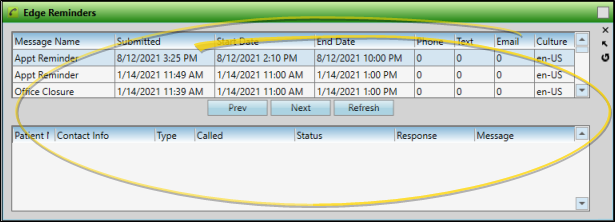
Reminders
Use the Edge Reminders widget to review the status of Edge Reminders messages you have sent to your patients. See "Review Sent Messages" for details.
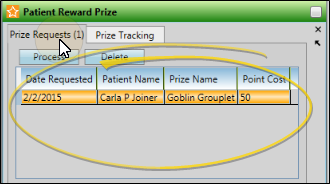
Reward Prizes
Use the Reward Prizes widget to edit, approve or deny patient prize requests, and view the number of each prize type that has been redeemed for a variety of time periods. See "Reward Prizes Widget" for details.
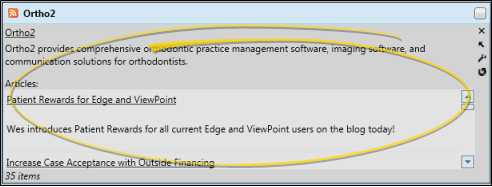
RSS Reader
Use the RSS Reader widget to have up-to-the-minute industry news and other data delivered directly to your Edge Cloud system. See "RSS Reader Widget" for details.
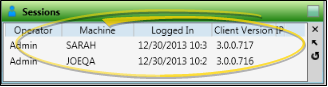
Sessions
Use the Sessions widget to review the computers and operators logged into your Edge Cloud system. The widget includes the operator name, machine name and IP address, the version of Edge Cloud that is running, and the date and time the user logged in. Each session indicates an Edge Cloud license being actively used. See "Sessions Widget" for details.
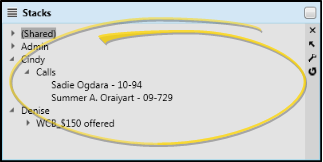
Stacks
Use Stacks to assign tasks, and manage the patient-related actions assigned to you. See "Stacks Widget" for details.
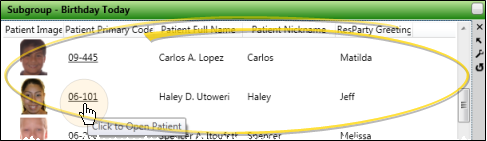
Subgroup
Use the Subgroup widget to keep a specific list of patients easily available to you. You can customize the fields to display in the widget, group and aggregate the data for any displayed column, and add a link that will open the selected patient folder to a specific page. See "Subgroup Widget" for details.
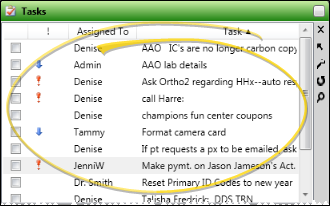
Tasks
Use the Tasks widget to assign, prioritize, and track essential office activities that do not happen within your Edge Cloud system. See "Tasks Widget" for details.
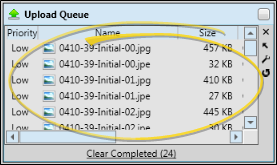
Upload Queue
Use the Upload Queue widget to monitor the progress being made toward permanently saving changes to your Edge Cloud database. See "Upload Queue Widget" for details.
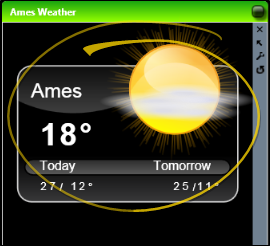
Weather
Use the Weather widget to stay informed about the weather events occurring at home, or at any location worldwide. See "Weather Widget" for details.
Office Contacts
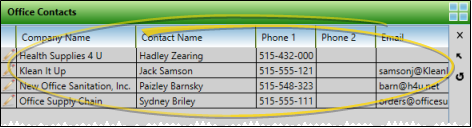
Use the Office Contacts widget to have immediate access to the contact details of the businesses and suppliers you work with on a regular basis. See "Office Contacts Widget" for details.
Reset Defaults
Click Reset Layout from the Widgets Library ribbon bar, then select which type of layout (Application or Dashboard) to return to the original defaults.
Work with Application Widgets
Move & Position Widget Windows
You can drag and resize an application widget window as needed. To "pin" a widget to your screen, drag it until your screen shows you the highlighted area where you want to place the widget, and click the pin icon. You can now "show / hide" the widget as needed. To move the widget again, first unpin it. You can then click the heading and drag it again.
Widget Tools
Use the icons on the widget tool panel or header to float, refresh, and close the widget, and to define the widget settings.

Close a Widget - Click Close to remove the widget from your screen.
Float / Pin a Widget - Click Float on the tool panel of a Dashboard widget to make it an Application widget. You can then resize the widget window, and drag it anywhere on your screen, even onto a second monitor. You can drag a floating, or Application, widget to an arrow on your Dashboard to pin it in place. Dragging a floating, or Application, widget to the center arrows places it on your Dashboard.
Refresh a Widget - Click Refresh (or press F5 on your keyboard) to update the widget to the most recent data.
Widget Settings - Click Settings to open the settings for that widget. Refer to the available widget list for details about each widget's settings.