
Correspondence Widget
Use your Correspondence widget to keep track of documents, images, and other files related to your practice, such as employee handbooks and policies. You can drag and scan files into the widget.
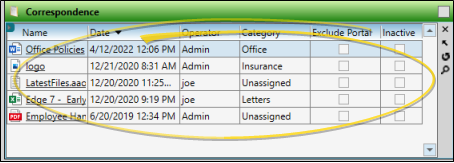
Open the Correspondence Widget
From the Application section of the Widget Library ribbon bar, choose the Correspondence widget, and select to open it as either a Dashboard or Application widget.
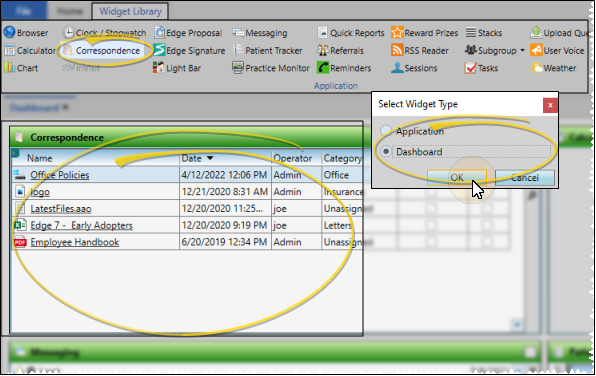
Use the Correspondence Widget
Filter Items to Display
Click the Filter icon at the left of the frame to select the categories of items to display. When you are finished, move your cursor off the filter selection box to close it. Edge Cloud remembers filter settings by user and page: So, no matter what workstation you use, or which notepad you are working with, your favorite filters go along with you. See "History Categories Editor" for details about setting up your categories.
View a Document / Video
Click the file name to open a document or run a video. You must have an appropriate viewing / editing tool, such as Adobe Acrobat, installed to be able to open files.
Drag Document / Image / Video
You can drag and drop almost any type of digital file into a correspondence history for archive and reference purposes. Files you may want to drag and drop include .PNG graphic files, .PDF document files, .MP3 sound files, and .MP4 video files. See "Drag & Drop Documents" for details.
Scan Document
Use the Scan tool to send a digital copy of any document from your scanning device to a correspondence history.See "Scan Documents" for details.
Show / Hide in Edge Portal
Click the Exclude Portal column at the right-side of an item in the correspondence history to toggle whether the item appears in the Edge Portal mobile viewer. You might need to use the scroll bar at the bottom of the frame to see the Exclude Portal option.
Inactive Option
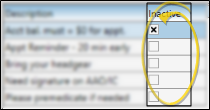
Once you create a record, you cannot delete it. You can, however, flag it Inactive. Records you flag as Inactive are not available for general use, but they remain in your system for reporting and other data collection needs. In addition, you can toggle records back to Active whenever needed.
Search for a Document
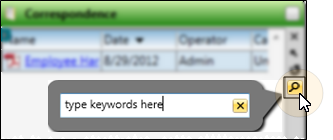
Click the Search icon in the widget tool panel, then type a key word or words to quickly locate the text you need. To clear your current search, click the X in the search text box.
Sort Data
Click a column heading to sort the data by that column. Click the same column heading to reverse the sort order.
Adjust Column Width
Click the bar between two columns to reallocate the column space. Be aware that it is possible to adjust a column to be so narrow that you no longer see it.
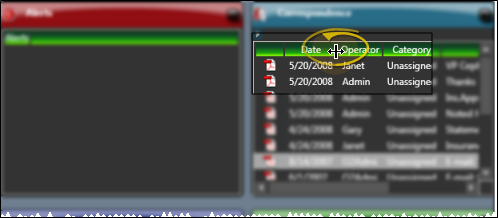
Change Column Order
Click a column heading and drag it to a new location within the window. Other columns adjust accordingly.
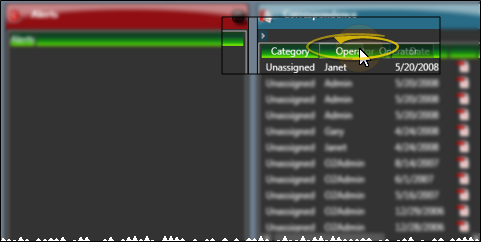
Widget Panel Options
Depending on your device and panel format, you can expand and minimize widget panels, move the widget location on your screen, float them in their own windows, refresh and print data, and close the widget when you no longer need it. See Application widgets or Your Dashboard for details about using these features.