Use "Assign" to Create Workflow Variables
You can use the "Assign" element of the Workflow editor to create new variables, and assign values, or contents, to those variables to use within a specific workflow activity. Most often, "Assign" elements are used in conjunction with "If" conditional statements to evaluate patient data and assign an appropriate value according to the results of the evaluation.
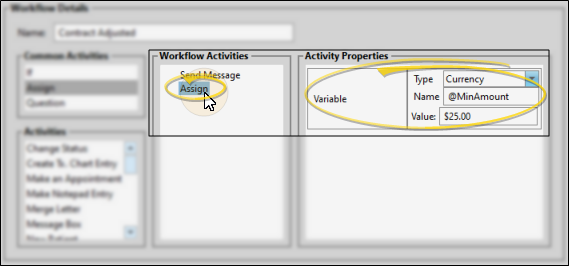
The variable you create with the Assign element keeps its value only within this workflow.
Add the Assign Element to a Workflow
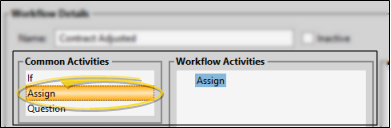
Drag the "Assign" element from the Common Activities list to your Workflow Activities list.
Create Your New Variable
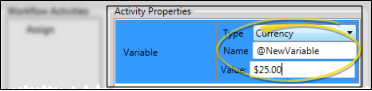
Choose the variable type to work with. Then type a name for your variable, and enter the value, or contents, to assign to it. The value format depends upon the variable type you have chosen to work with.
Tell me more about variable types,,,
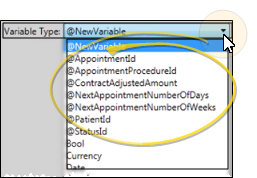
@Variables
Use these variables to evaluate a specific type of static data. For example, variables that you create with the Assign element contain data that is available only for the workflow activity in which they were created.
Bool
Use this variable type to evaluate whether data is "true" (checked), or "false" (unchecked). Check the Value option if you want the tested data to be "true"; leave it unchecked if you want the tested data to be "false".

Currency
Use this variable type to evaluate a specific dollar amount.

Date
Use this variable type to evaluate a specific date.

DateTime
Use this variable type to evaluate a specific date and time,

Double
Use this variable type to evaluate a number up to two digits past the decimal point (i.e. 18.75 or .99)

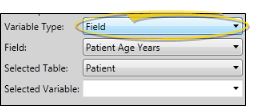
Field
Use this variable type to evaluate a specific field in your Edge Cloud database. After selecting this variable type, choose the Field to work with (such as Patient Age Years or Office Abbreviation). Most often, the Selected Table property correctly reflects the type of field you have chosen. On occasion, you may wish to choose a Selected Variable that will contain this field data for the duration of the workflow activity.
Int
Use this variable type to evaluate an integer, or whole number, such as 18. After selecting this variable type, be sure to enter the integer to evaluate in the Value field.

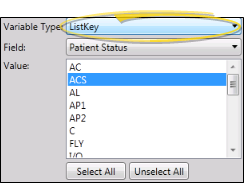
Listkey
Use this variable type to evaluate a list response from your Edge Cloud database. After selecting this variable type, you choose the Field to work with, such as Office Abbreviation or Patient Status. The available responses then appear in the Value box, where you can select one or more responses to work with.
String
Use this variable to evaluate specific text. After selecting this variable type, use the Value field to enter the exact text you want to evaluate in.

Arrange Workflow Activities
Most often, "Assign" variables are used in conjunction with conditional "if" elements to evaluate patient data and assign an appropriate value according to the results of the evaluation. Once you have created your Assign variable, you often will need to drag and drop it into the appropriate location in the Workflow Activities list to be sure the appropriate activities will be completed, according to whether or not the conditional element has been satisfied. See "Workflow Conditional "If" Elements" for details.
Save Changes
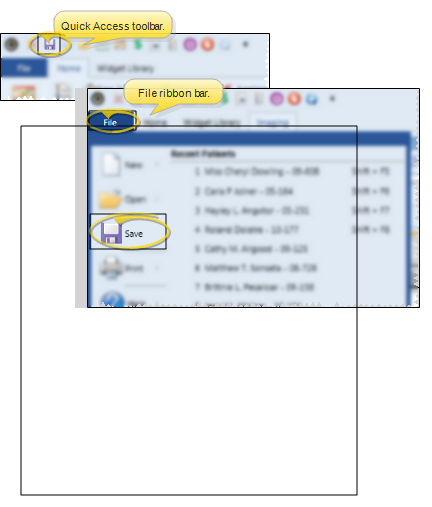
Click Save in your Quick Access toolbar or File ribbon bar (or press Ctrl+S on your keyboard) to save any changes you have made.